Connect an FTP or SFTP server
Use this when your system already publishes files to a server, or when several tablets in different places need the same files without a sync app on each one. Every tablet connects to the server directly whenever it syncs.
You need from your IT person: the server’s address, a username and password (or an SSH key), and which of SFTP, FTPS or FTP it speaks. SFTP is the one to ask for.
Step by step
Open the server page
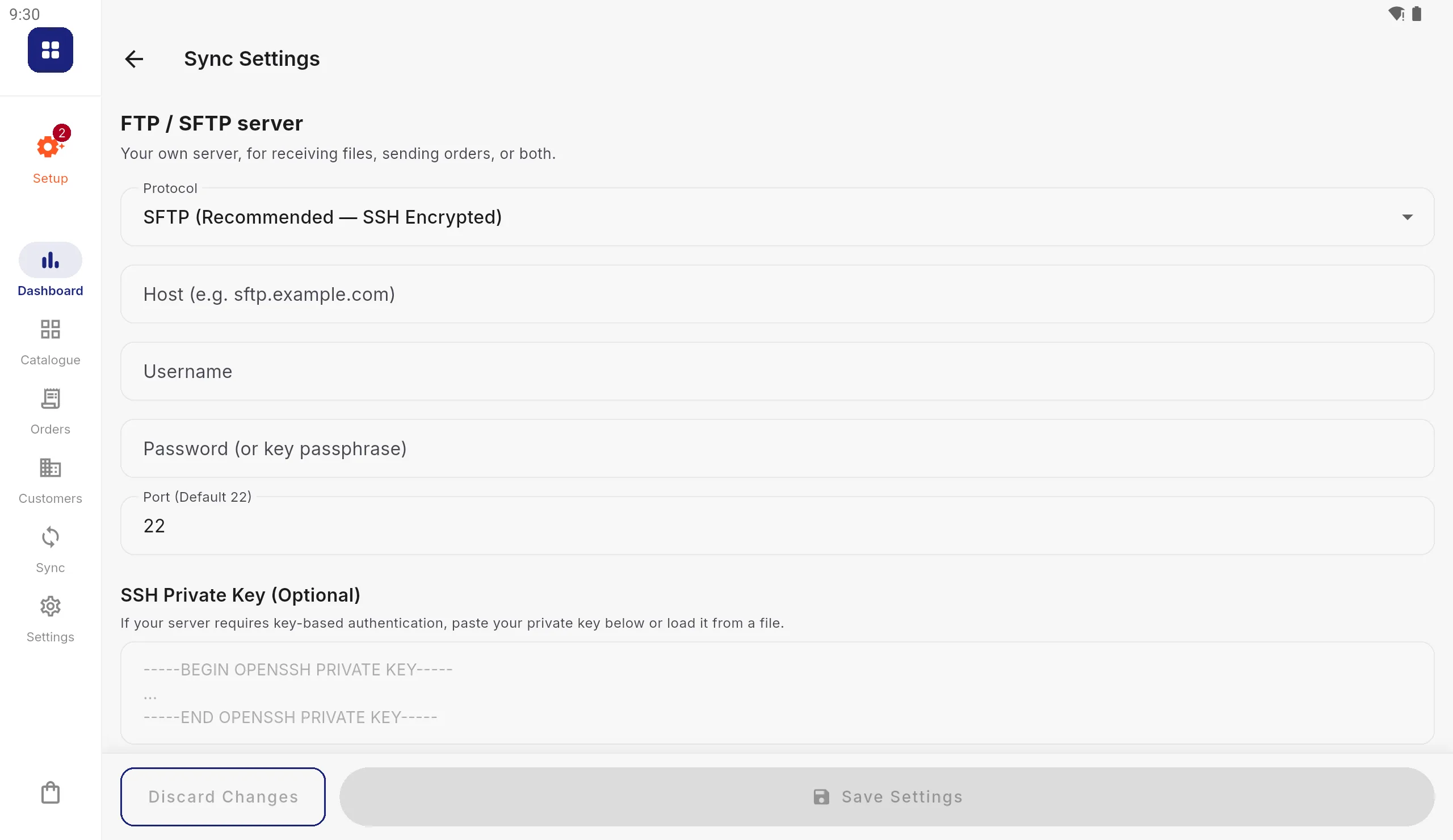
Go to Settings › Data Integration › Sync & Integration › Receiving and press Set up beside FTP / SFTP Server. (The same page is under Connection details › FTP / SFTP server.)
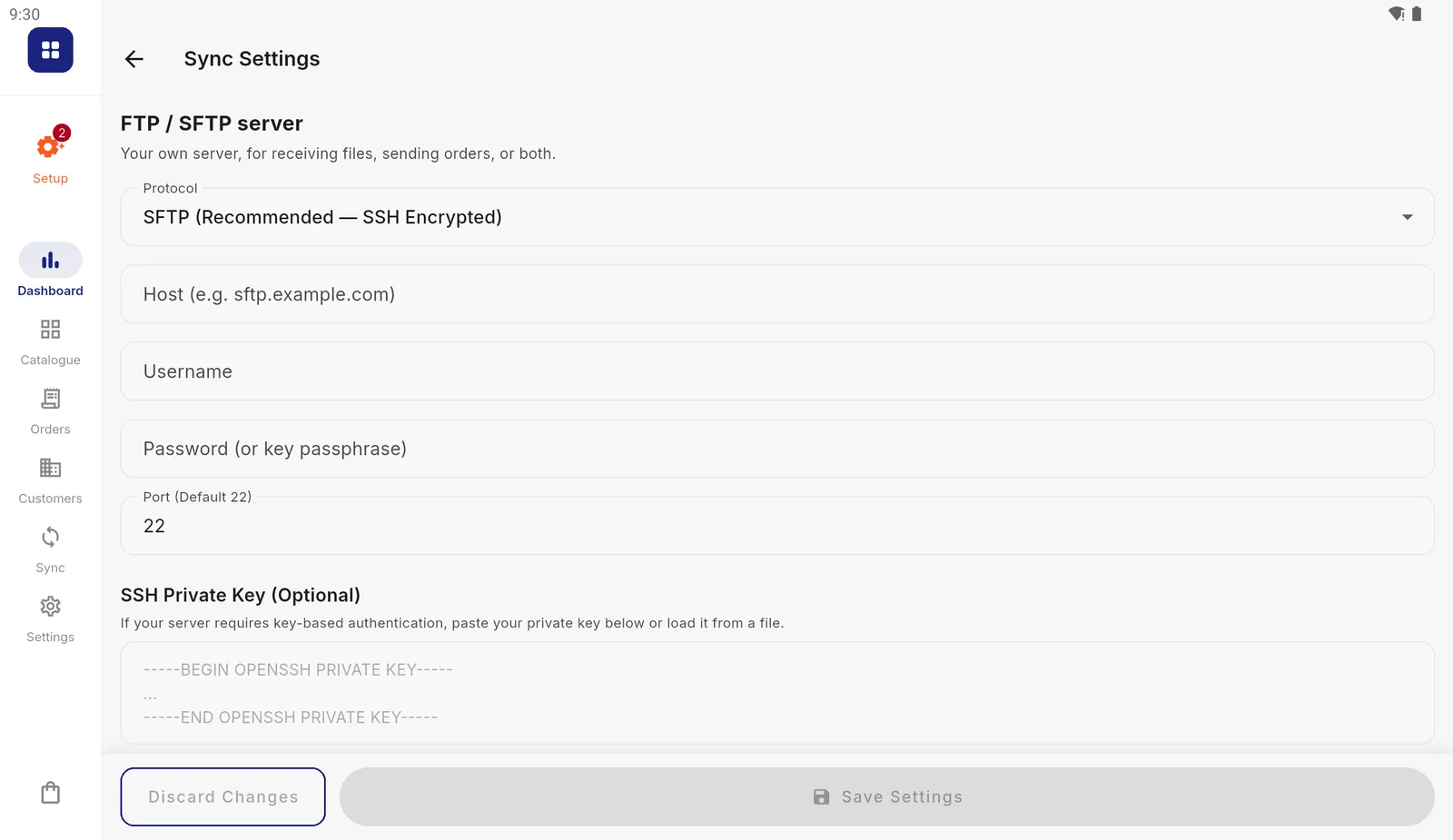
The page starts on SFTP with port 22. Choose the protocol
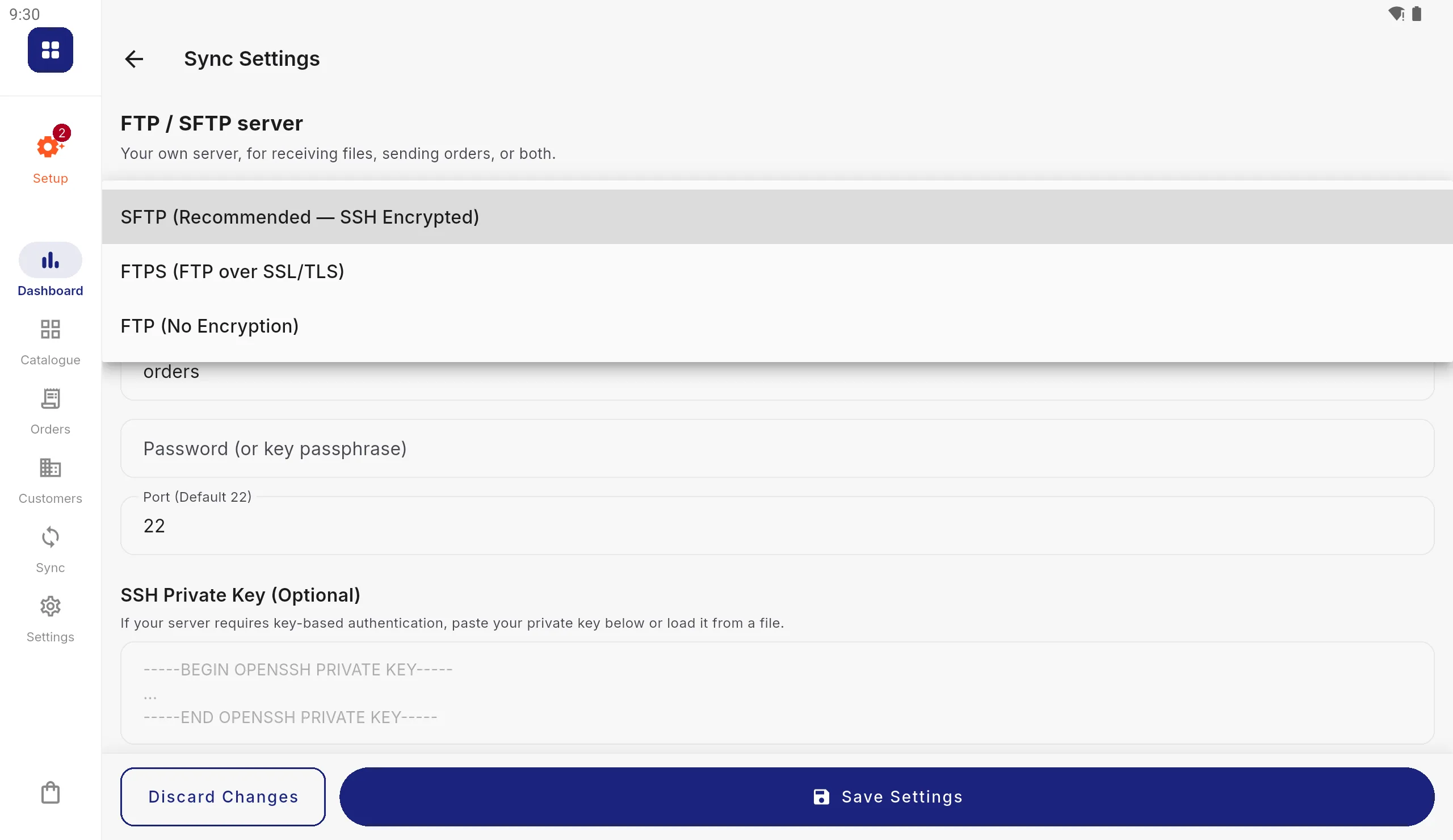
Tap Protocol and pick what your server speaks. The port changes to match (22 for SFTP, 21 otherwise); change it only if your server uses another.
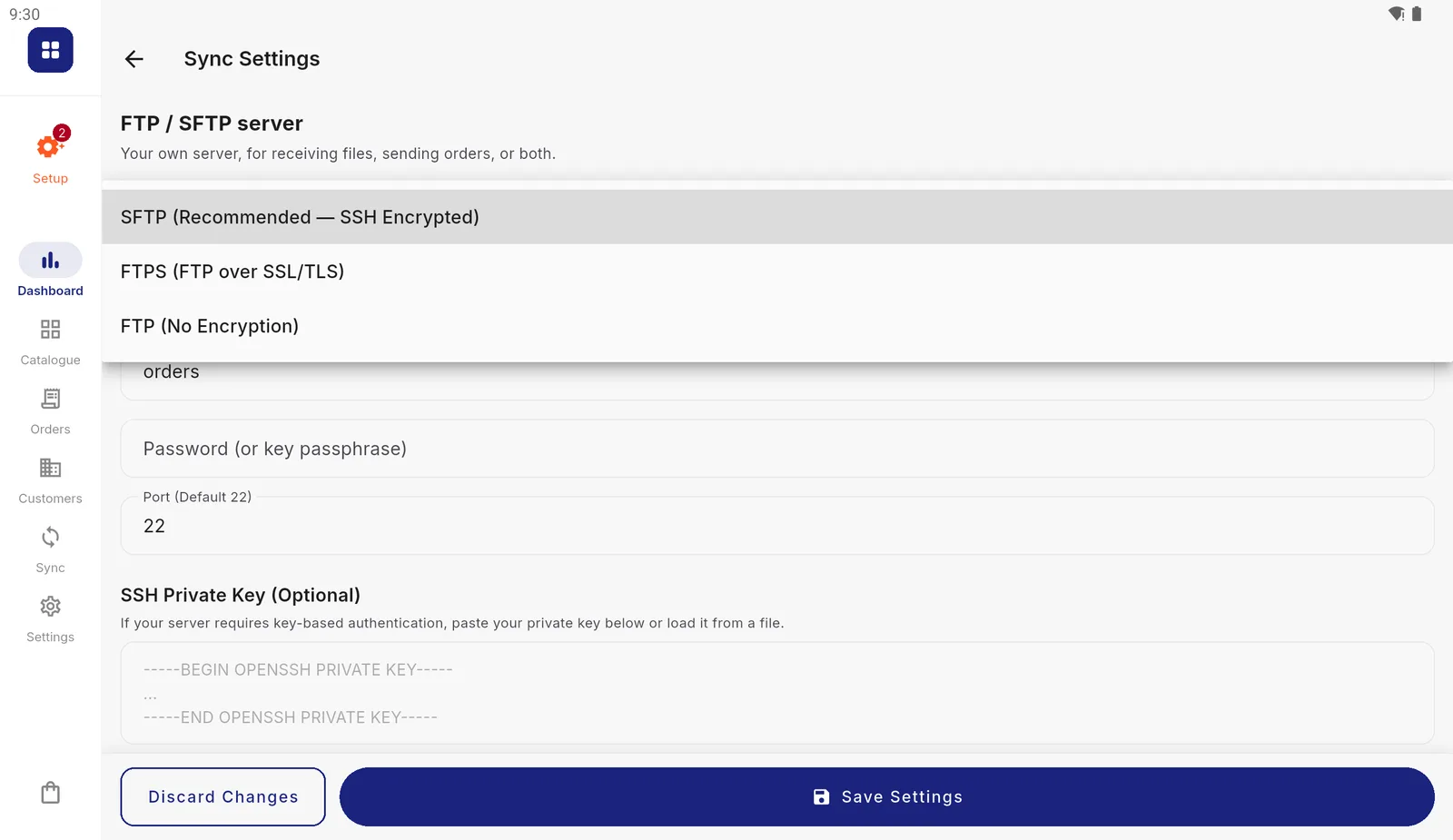
Choosing plain FTP brings up a warning first, because it sends your customers' details and passwords unencrypted. Enter the details
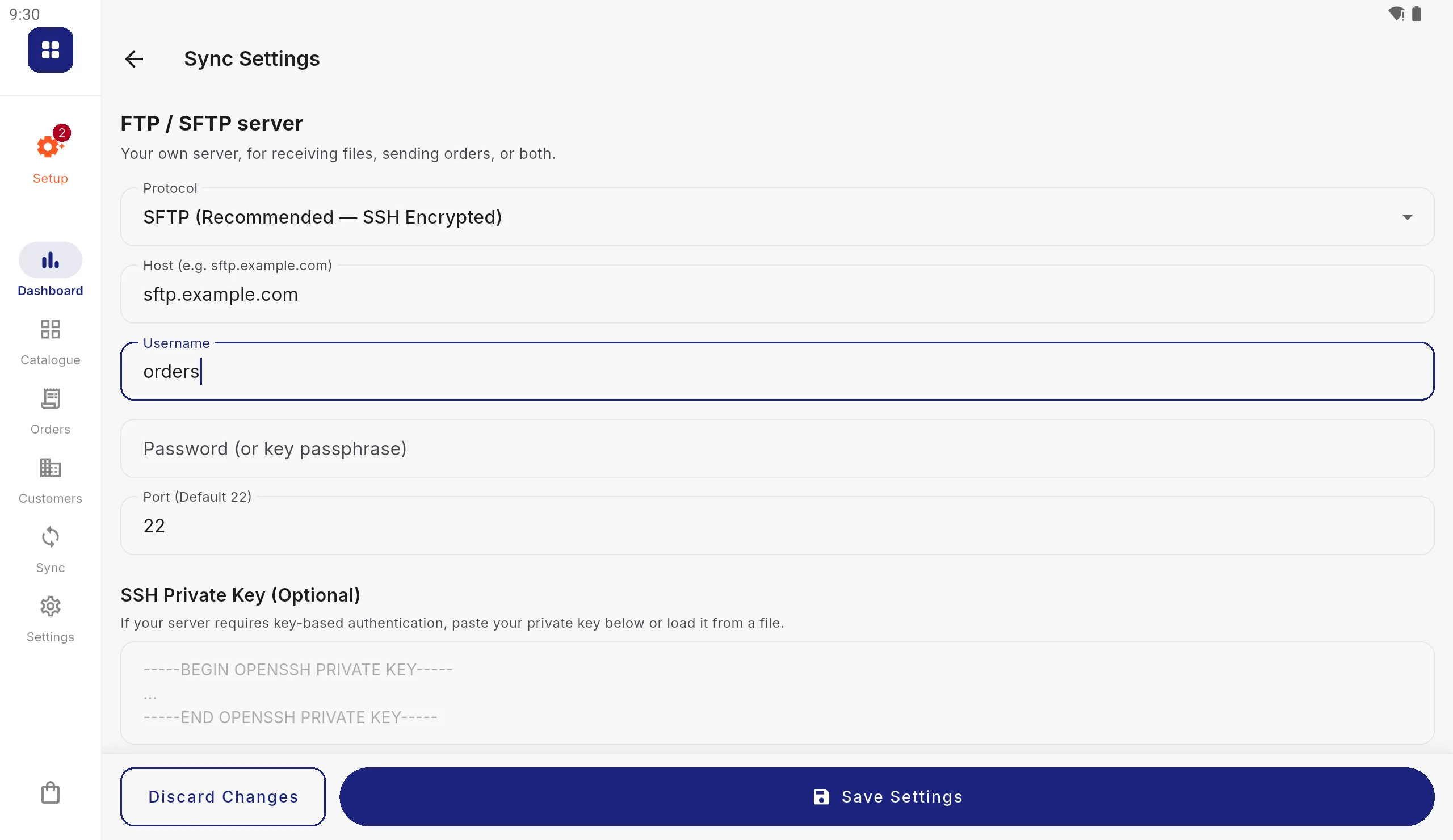
Type the server address in Host (just the name, such as
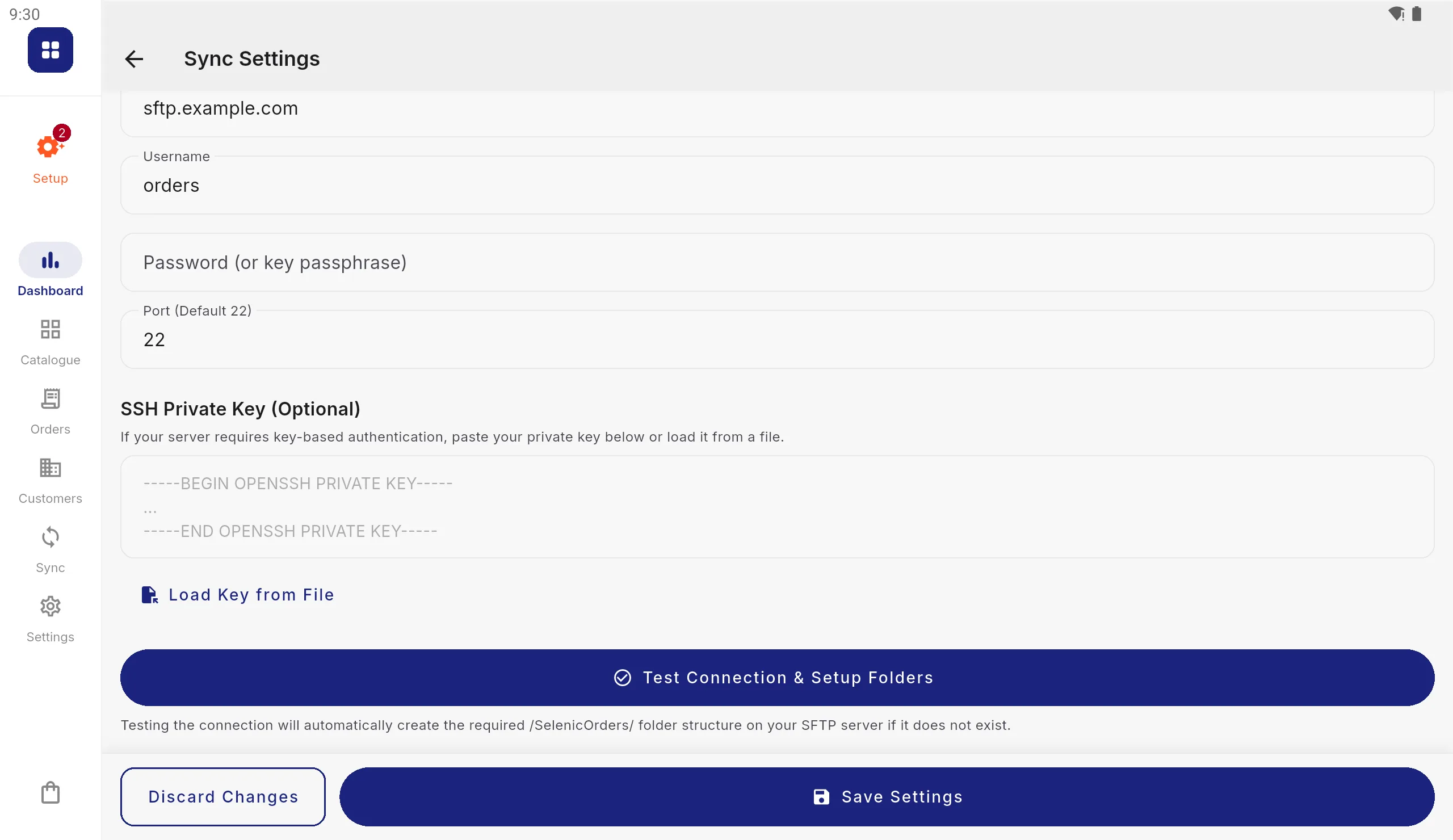
sftp.example.com, withoutsftp://), then Username and Password. For a key instead of a password, paste it into SSH Private Key or press Load Key from File, and put the key's passphrase, if it has one, in the password box.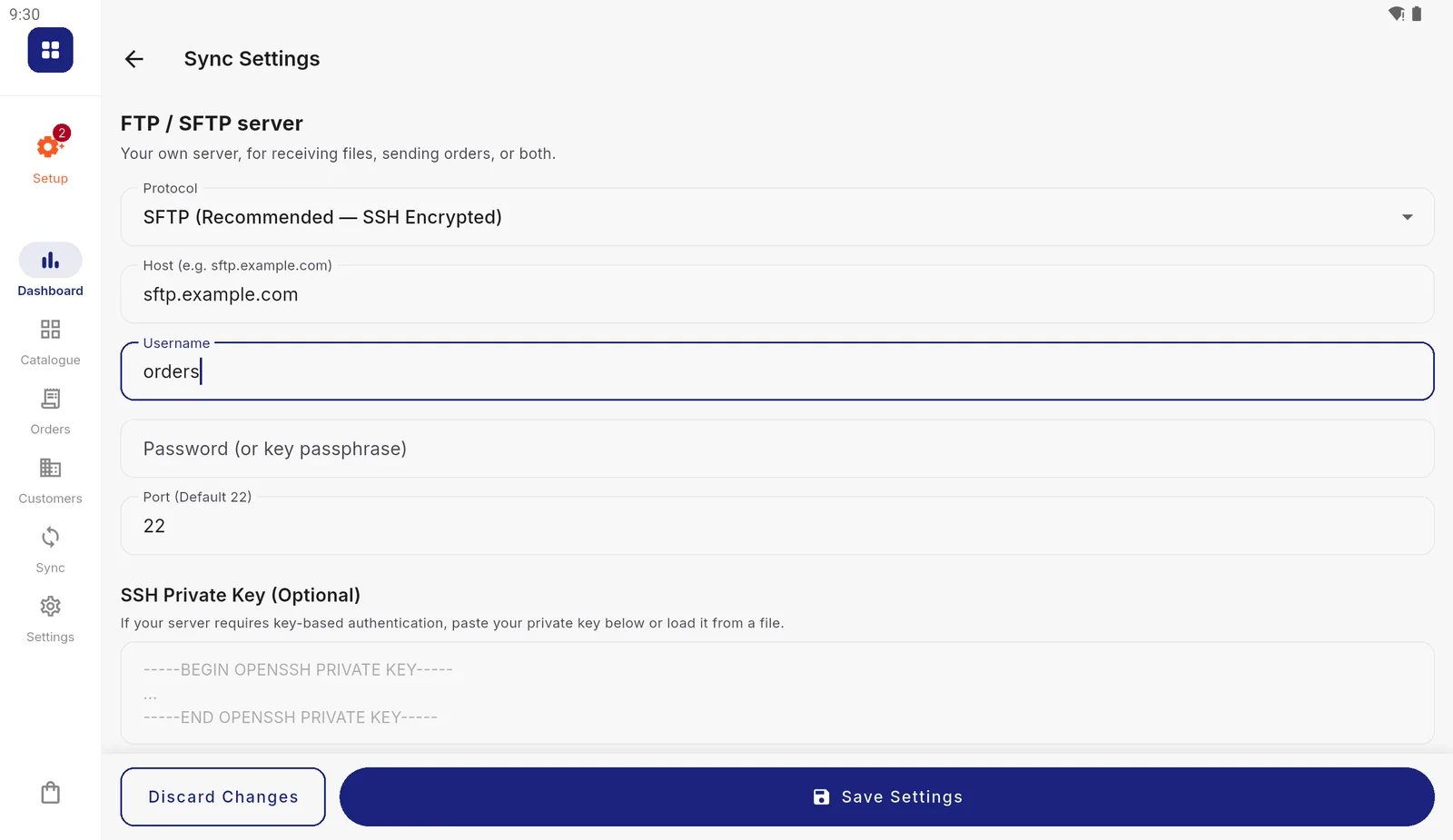
An example server. Your own details go here. Test the connection
Scroll down and press Test Connection & Setup Folders. The app signs in, creates its folders on the server if they are not there, and says Connection successful & folders created! If it cannot, it says why.
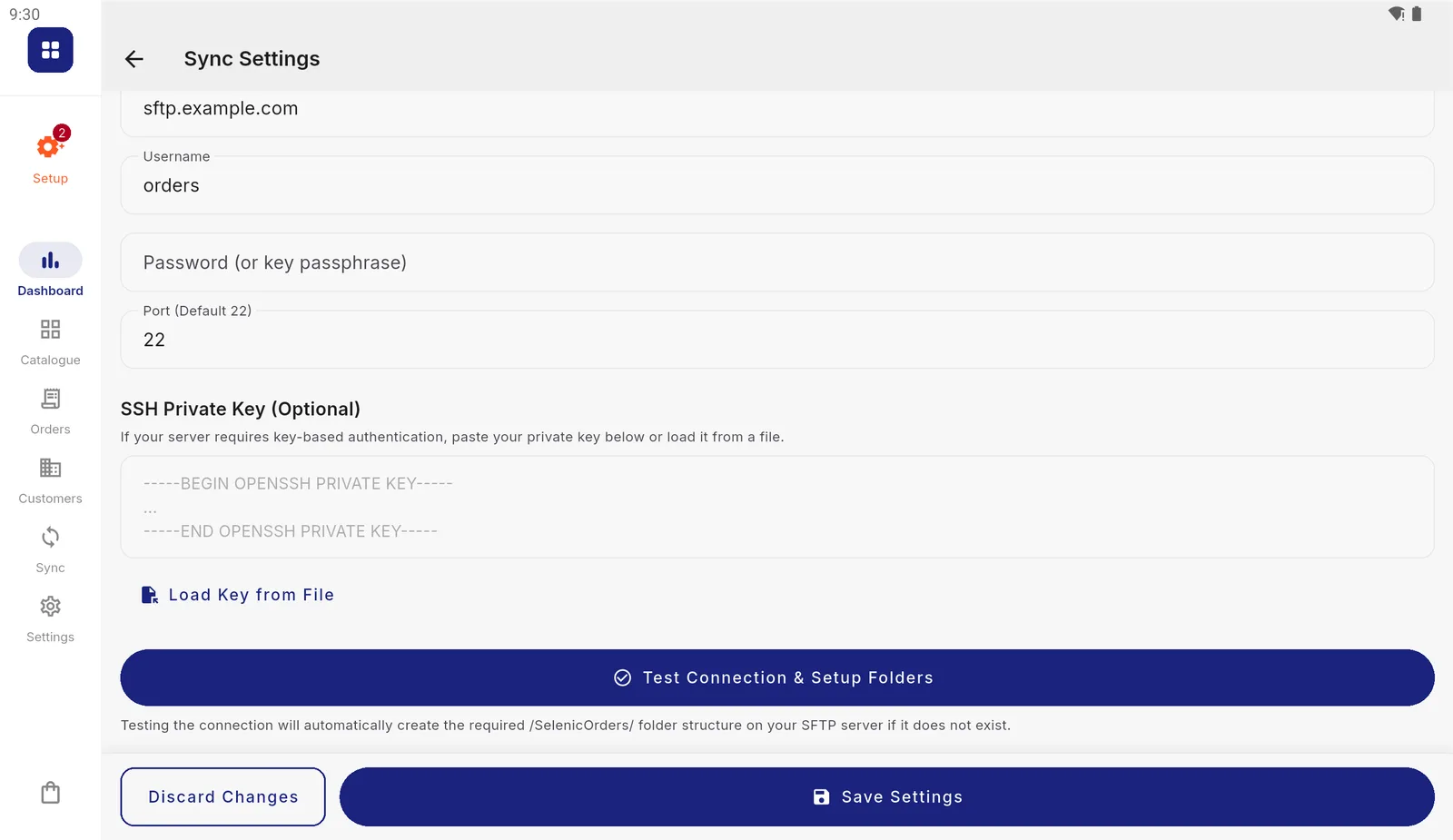
The test creates the folder structure, so run it once before your system starts sending files. Choose it and save
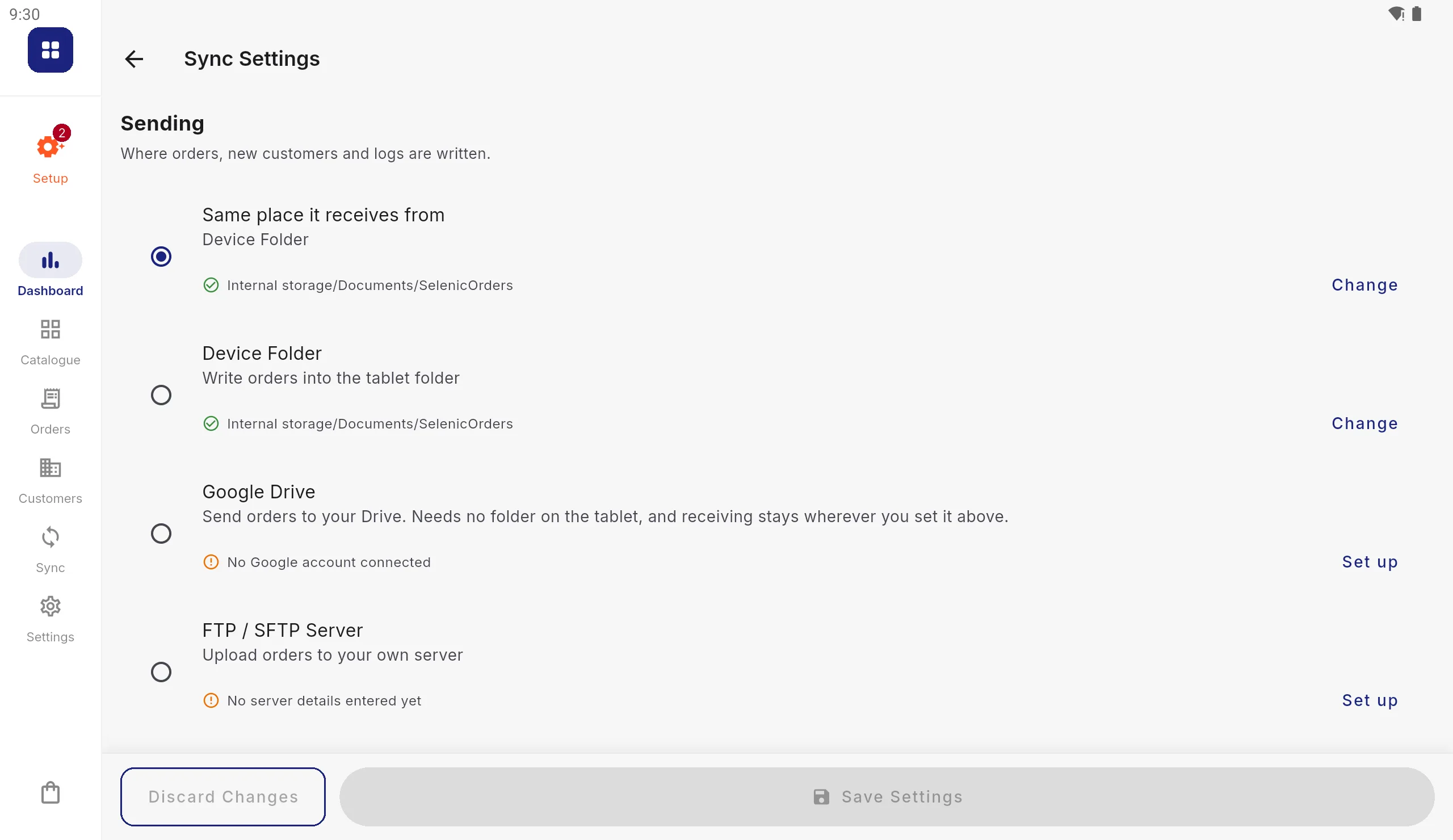
Back on Receiving, choose FTP / SFTP Server. Under Sending, Same place it receives from sends orders to the same server. Press Save Settings.
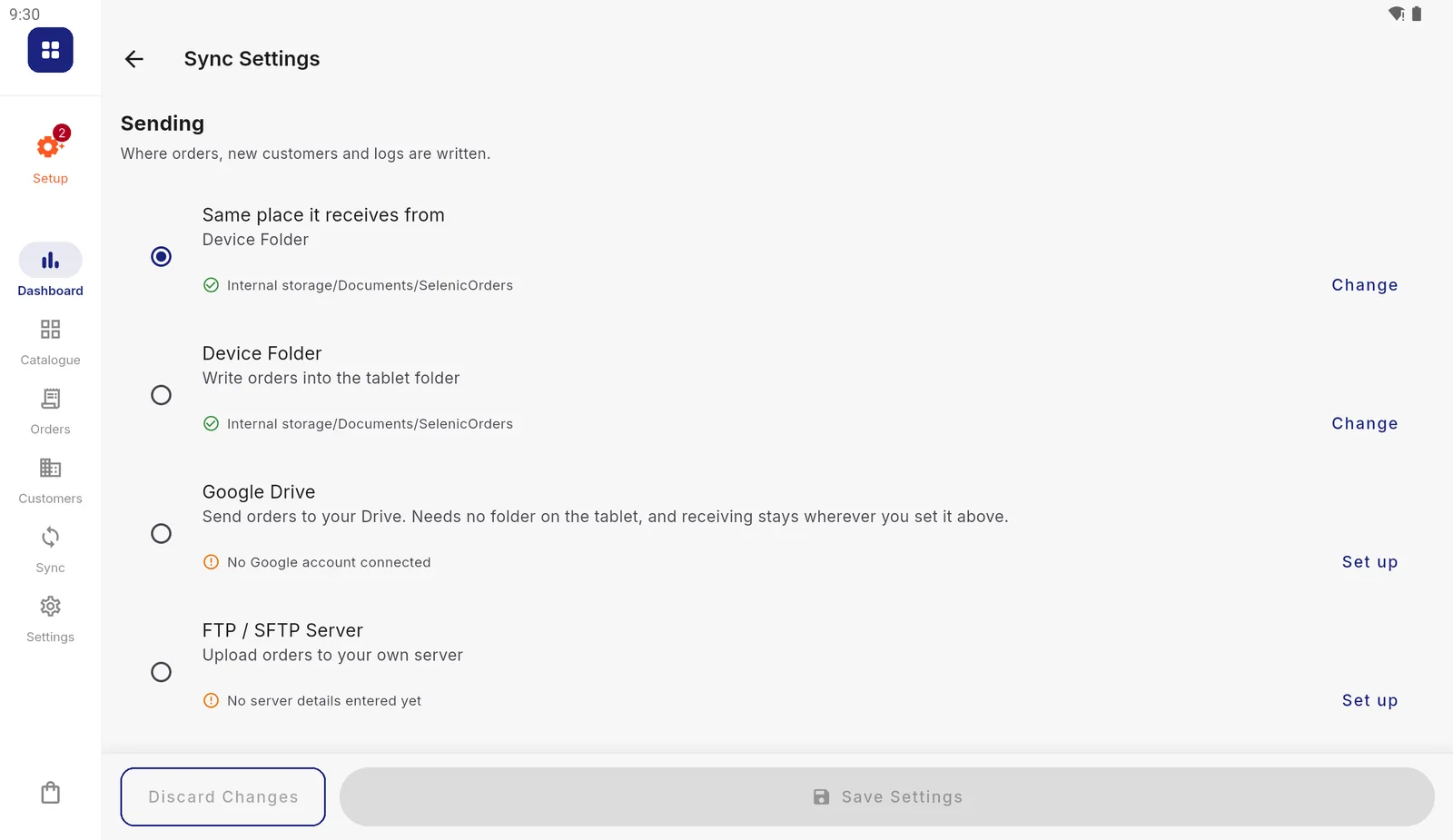
Sending lists every way orders can leave the tablet. Most businesses send to the same place they receive from.
Do the same on every tablet. Passwords and keys never travel between tablets: shared settings carry everything else, but each tablet has its credentials typed on it.
What the app creates on the server
| Protocol | Where |
|---|---|
| FTP and FTPS | A folder called SelenicOrders in the folder the account logs into |
| SFTP | /SelenicOrders, an absolute path from the top of what the account can see |
On an SFTP server that keeps each account in its own folder (a chroot, which
most hosted SFTP services do), /SelenicOrders is inside that folder and
nothing needs doing. On one that does not, create /SelenicOrders yourself
and give the account write access to it, or the test will fail.
Inside it are Inbound, Images, Outbound, Config and Logs, as
described in Connecting your ERP,
and the _SAMPLE_ files listed on the file formats page.
For your IT person
- Uploads are written under a temporary name and renamed when complete.
Each order file goes up as
….partand is renamed once the whole file has arrived, so a collector watchingOutboundfororders_export_*.csvnever picks up half a file. Ignore.partfiles. - The app never deletes or moves anything in
Inbound. Every tablet reads the same folder and remembers what it has read. Tidy it on your side once every tablet has synced. - Write your own files the same way: under a name the app does not pick up
(
Products.csv.tmp), renamed when complete. The app also looks at each file twice a few seconds apart and leaves one that is still growing for the next sync. - The account needs to list, read, write and rename files, and to create folders.
- Only the tablets connect to the server. Nothing of yours passes through any other service.
If it does not work
| What you see | Why, and what to do |
|---|---|
| Connection failed, timed out | The tablet cannot reach the server: wrong host or port, or a firewall. Try the address from another device on the same network |
| Connection failed, authentication | Username, password or key wrong. Re-type the password; check the key is the private half |
| Fails on SFTP but signs in with another program | The account cannot create /SelenicOrders. See “What the app creates on the server” |
| Works on Wi-Fi, fails on mobile data | The server only allows your office’s address. Ask for the tablets’ connection to be allowed, or use a VPN |
| “Sync settings saved” but nothing imports | Files are not in SelenicOrders/Inbound, or their names match nothing. The sync log names every skipped file |