Reshape Feed
Most businesses never need this page. An import profile renames columns, and the app already reads price lists in all three shapes systems normally export them in. Reshape Feed is for the export whose shape is wrong, not its names:
- a price list’s name in one column and its price in another;
- one row that has to become several records;
- values that need joining, splitting or fixing on the way in.
It is aimed at your IT person. If you are not technical, the useful thing to know is that an awkward export can be fixed on the tablet, so you do not need to ask for your system to be changed.
How it works
You write a short template in Liquid, the template language Shopify uses
and the same one the app’s export templates
use. The app reads your file first, whatever its format, and hands the
template the records as rows. The template writes out a JSON list of
records, and the profile’s mapping then reads those as if they had been
your file.
your file → read as rows → your template → JSON records → the mapping → the tabletThe mapping reads what the template produces, so a reshaped profile is written with the template’s output names, not your file’s.
A template that fails stops the import. The file is left in Inbound,
nothing is changed on the tablet, and the sync log says what went wrong. The
app never falls back to reading the file without the template, because the
mapping would then read it confidently and wrongly.
The example: a price list in two columns
Your system exports one row per product per price list, with the price list’s name and its price in separate columns:
SKU,Description,RRP,PriceListName,Price
WINE001,"Andes Reserve 75cl",12.50,TRADE,9.50
WINE001,"Andes Reserve 75cl",12.50,WHOLESALE,8.00
WINE001,"Andes Reserve 75cl",12.50,PALLET,7.25
The mapping wants the name and the price together in one cell. This template rewrites each row into the shape the default products profile reads:
[{% for row in rows %}{% unless forloop.first %},{% endunless %}
  {"ItemCode": "{{ row.SKU | json_escape }}",
   "Description": "{{ row.Description | json_escape }}",
   "PriceRRP": "{{ row.RRP }}",
   "Currency": "GBP",
   "StockQty": "24",
   "Status": "Active",
   "PriceLists": "{{ row.PriceListName }}:{{ row.Price }}"}
{% endfor %}]
The three rows then become one product, WINE001, with three price lists:
TRADE at 9.50, WHOLESALE at 8.00 and PALLET at 7.25, because rows sharing a
product code are combined. This exact file and template are one of the app’s
own tests. (Currency, StockQty and Status are fixed values to keep the
example short; a real template would read them from your columns.)
Step by step
Open the profile
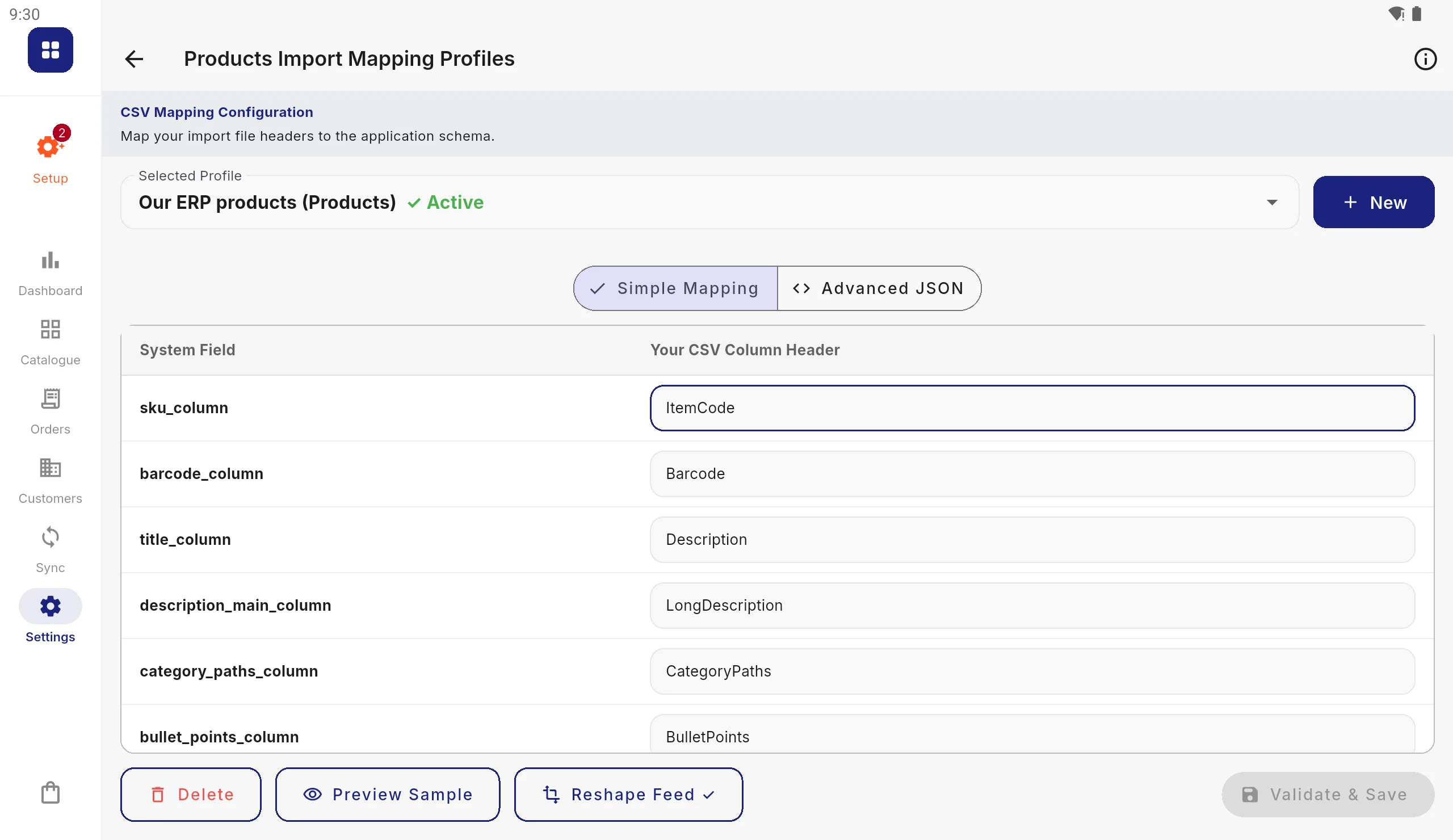
In Settings › Data Integration › Import Profiles, open the format your file is in and make or choose your own copy of the profile (see Import profiles; the default cannot be changed). Press Reshape Feed.
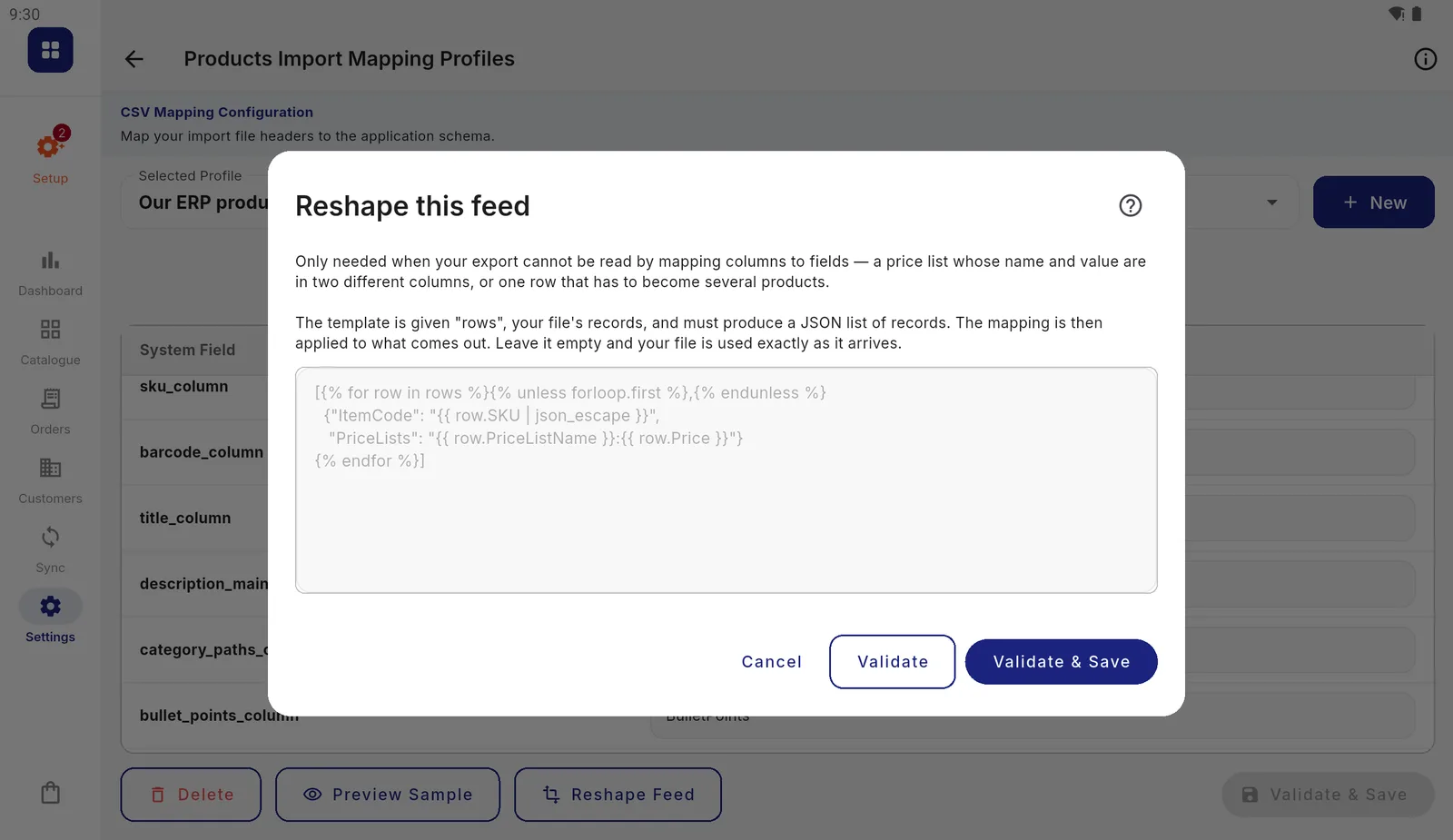
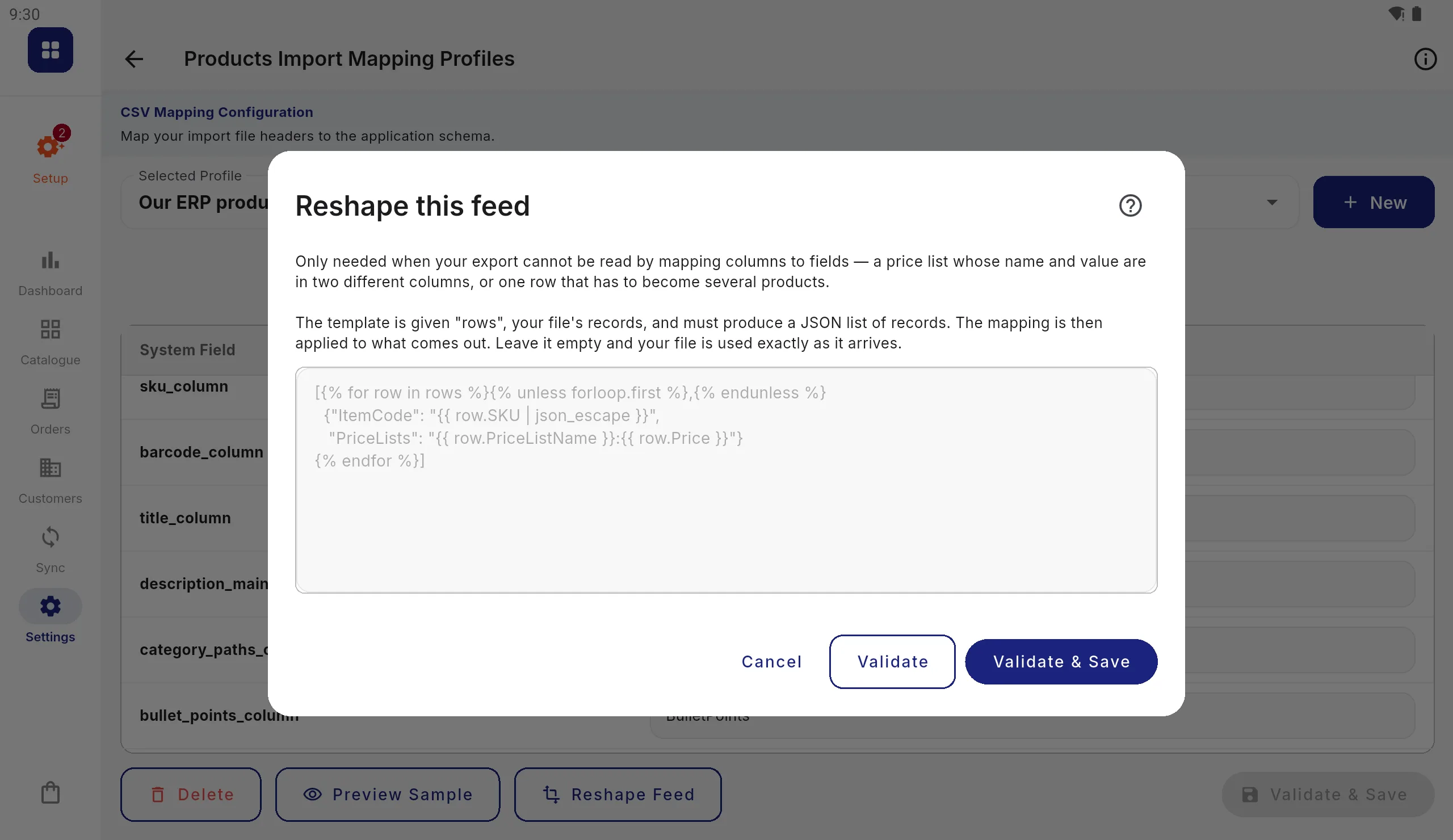
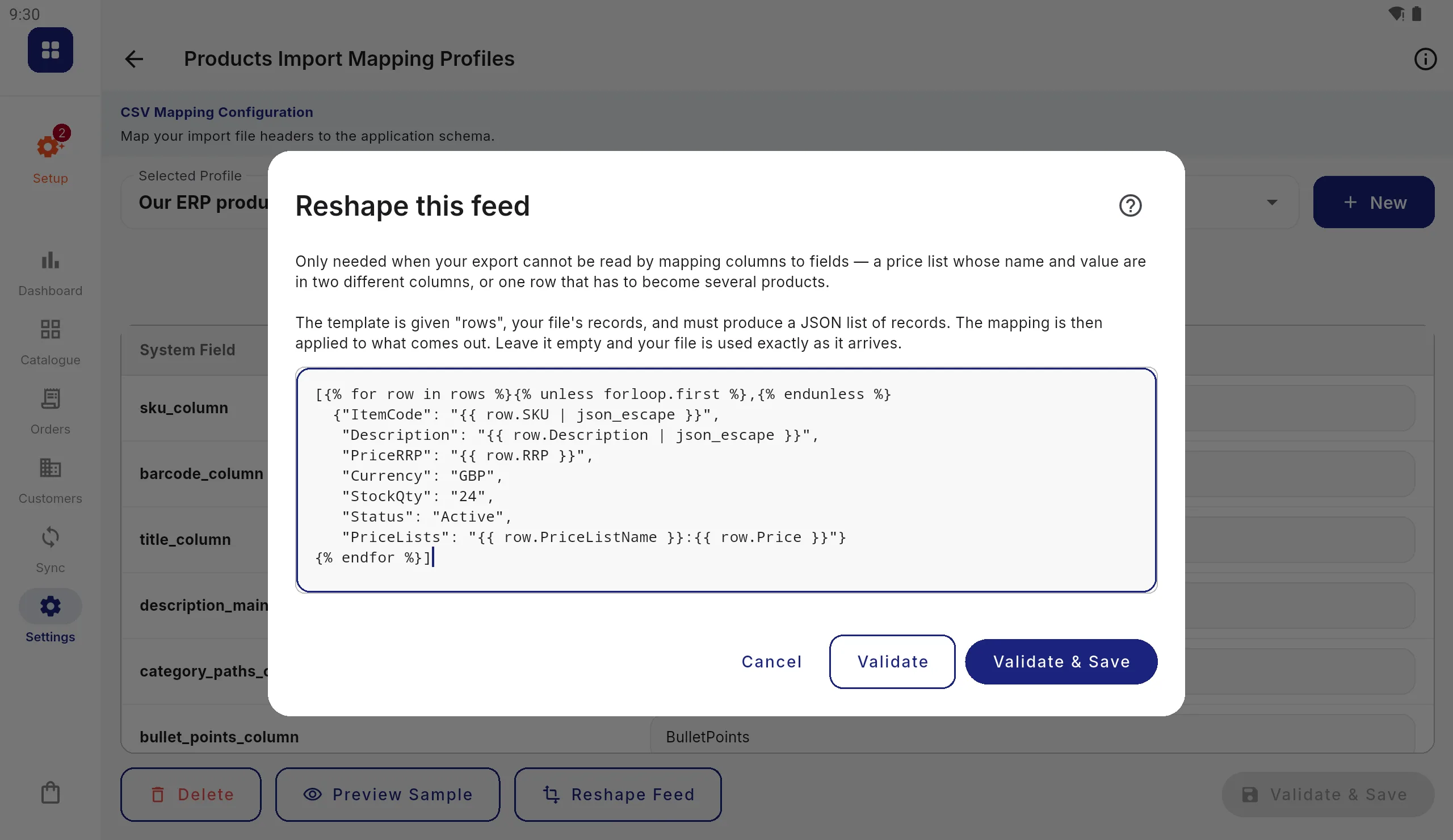
The box starts empty. Empty means the file is used exactly as it arrives. Type or paste the template
Write the template in the box. The ? at the top right opens help with the fields your mapping looks for.
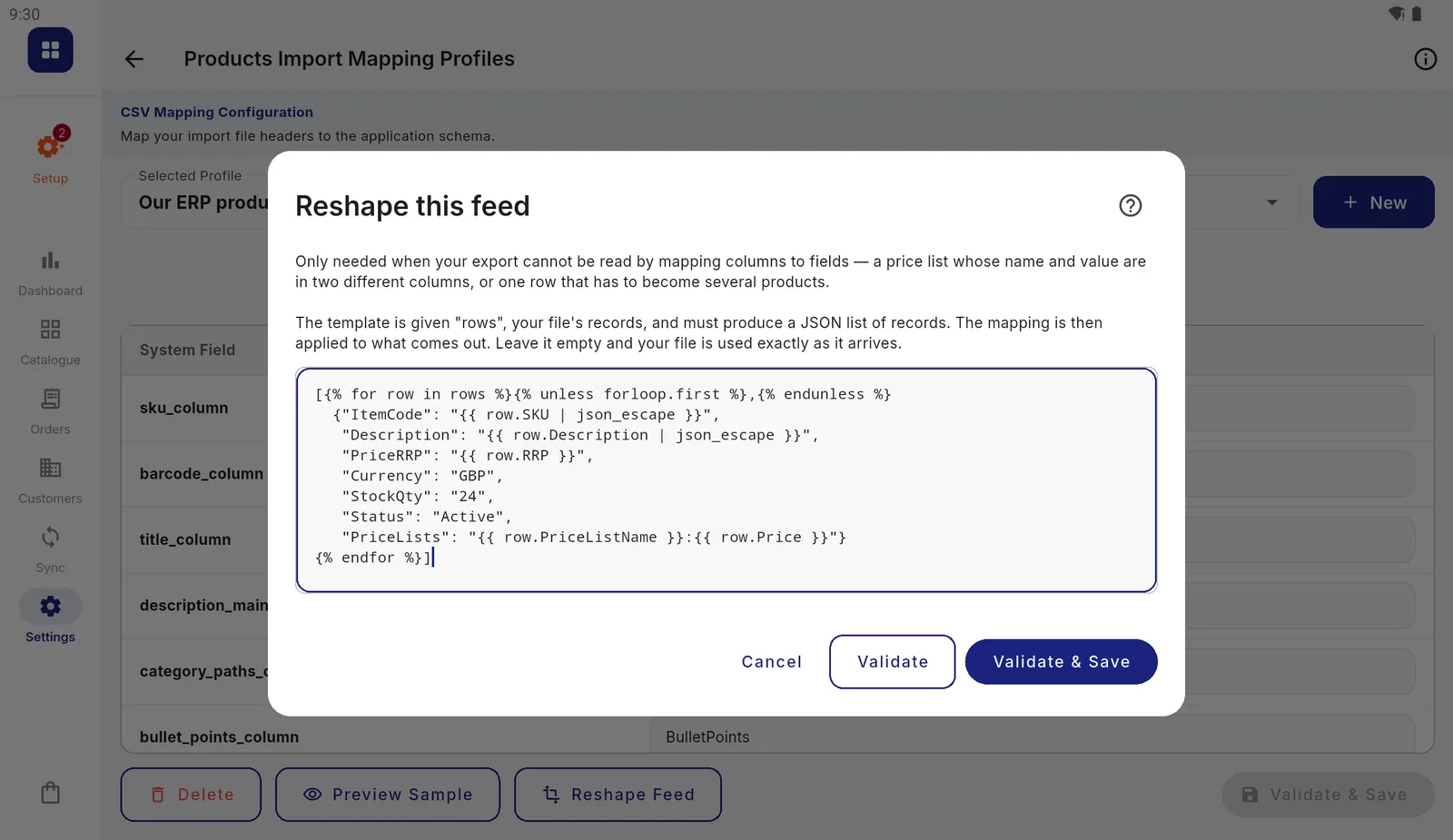
The example above, in the box. Press Validate
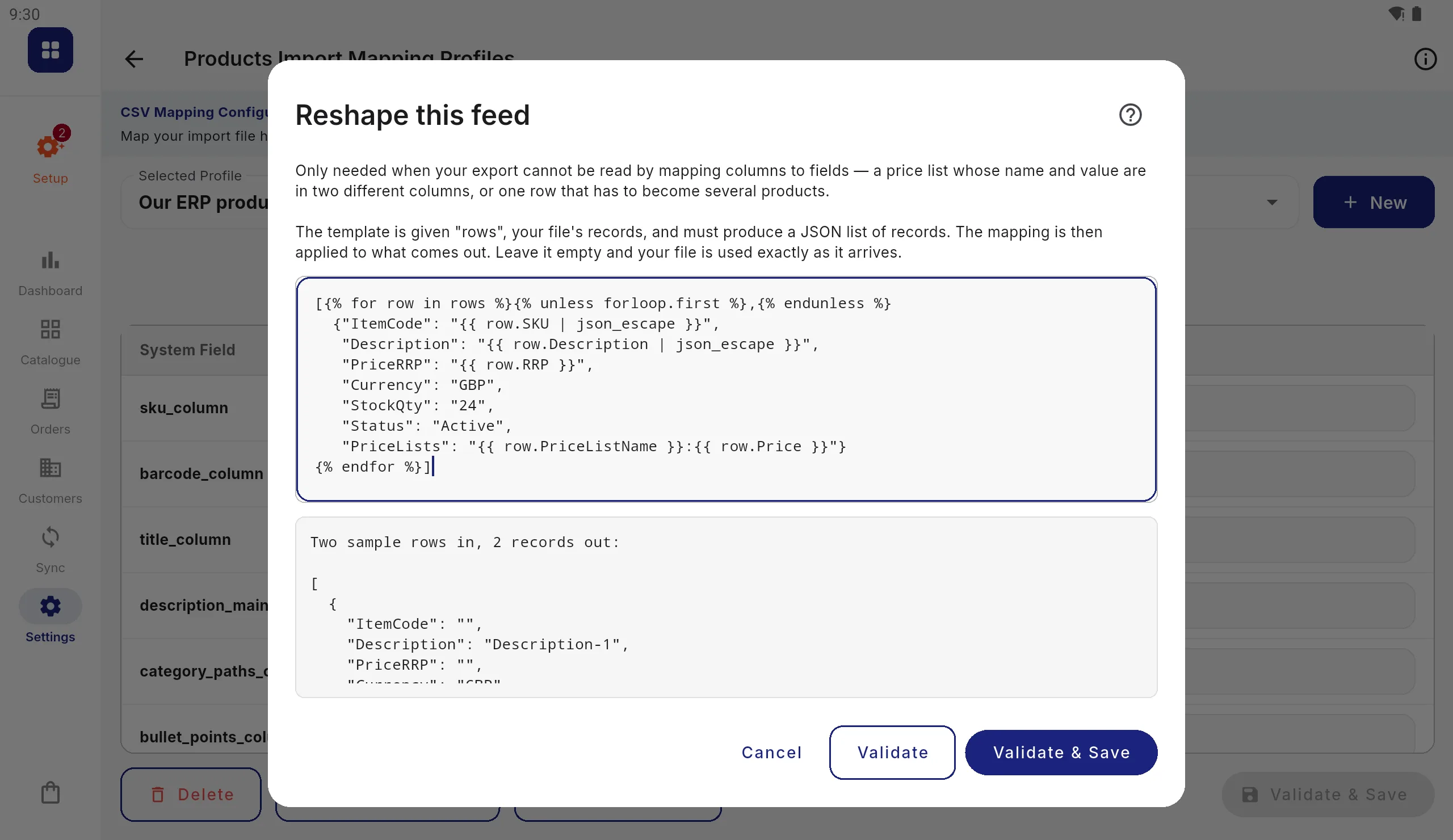
Validate runs the template on two made-up rows and shows the records it would produce, or what is wrong with it.
The made-up rows have the columns your mapping names, not your file's. So a column only your file has (
SKU,RRPandPriceListNamein the example) comes out blank here. Validate tells you the template runs and the shape is right; try the real file to see the values.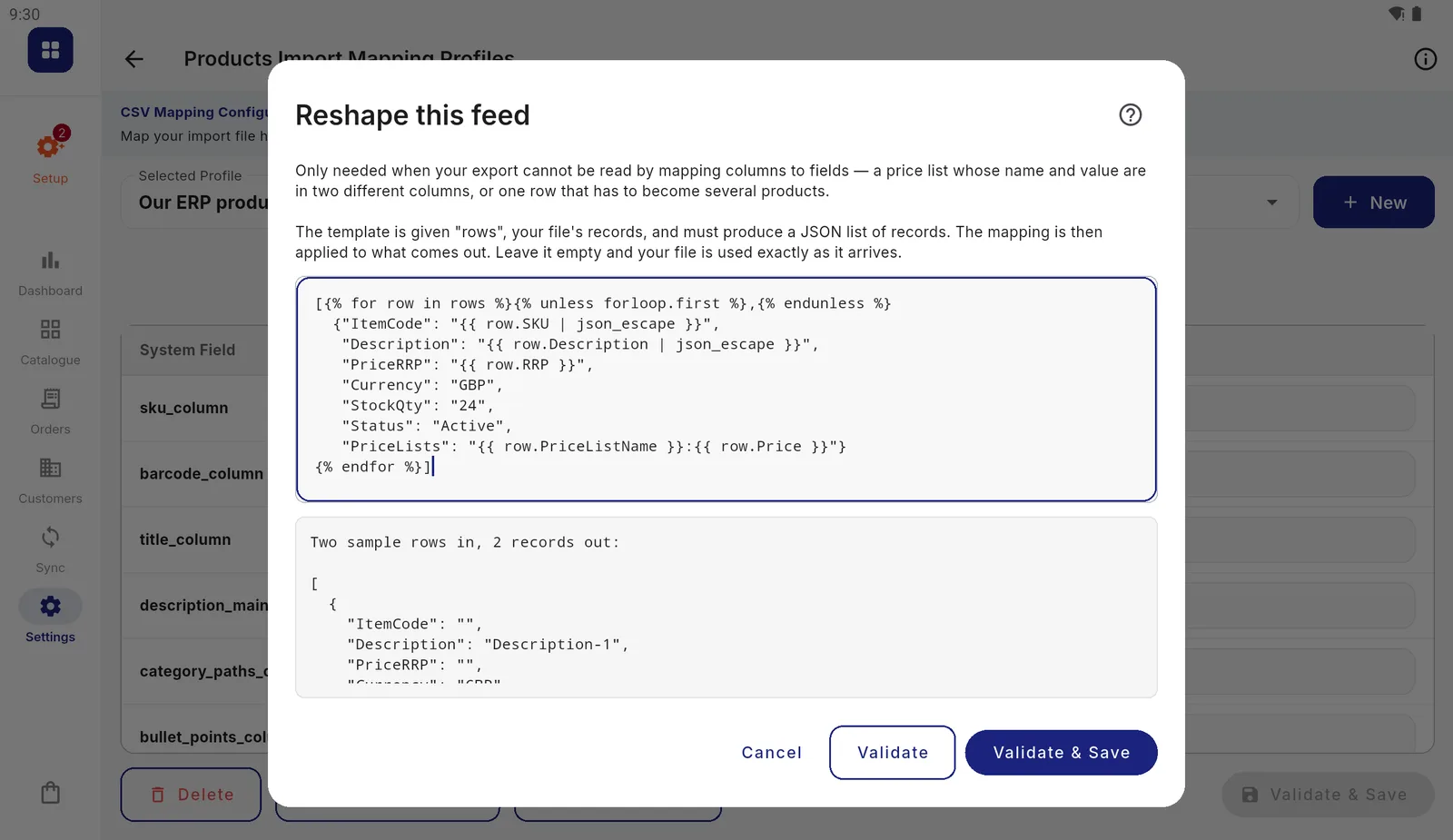
Two rows in, two records out. The blanks are the columns the made-up rows do not have. Press Validate & Save
The template is checked again and saved. The button on the profile then reads Reshape Feed ✓, so anyone looking at the profile can see the file is being reshaped. Read your files again when offered, so the files already in
Inboundare reshaped too.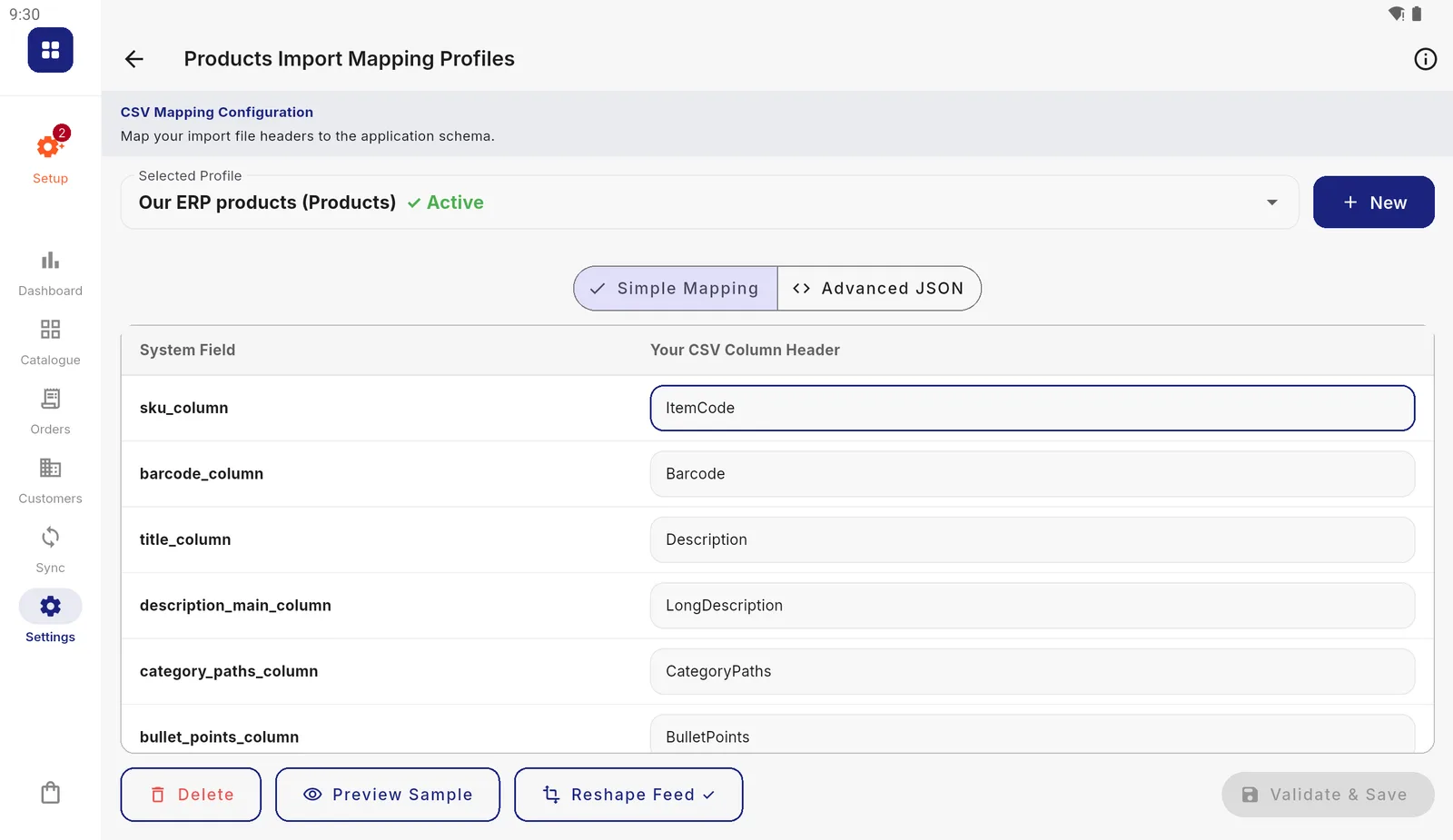
The tick means a template runs before the mapping on every import with this profile. Try the real file
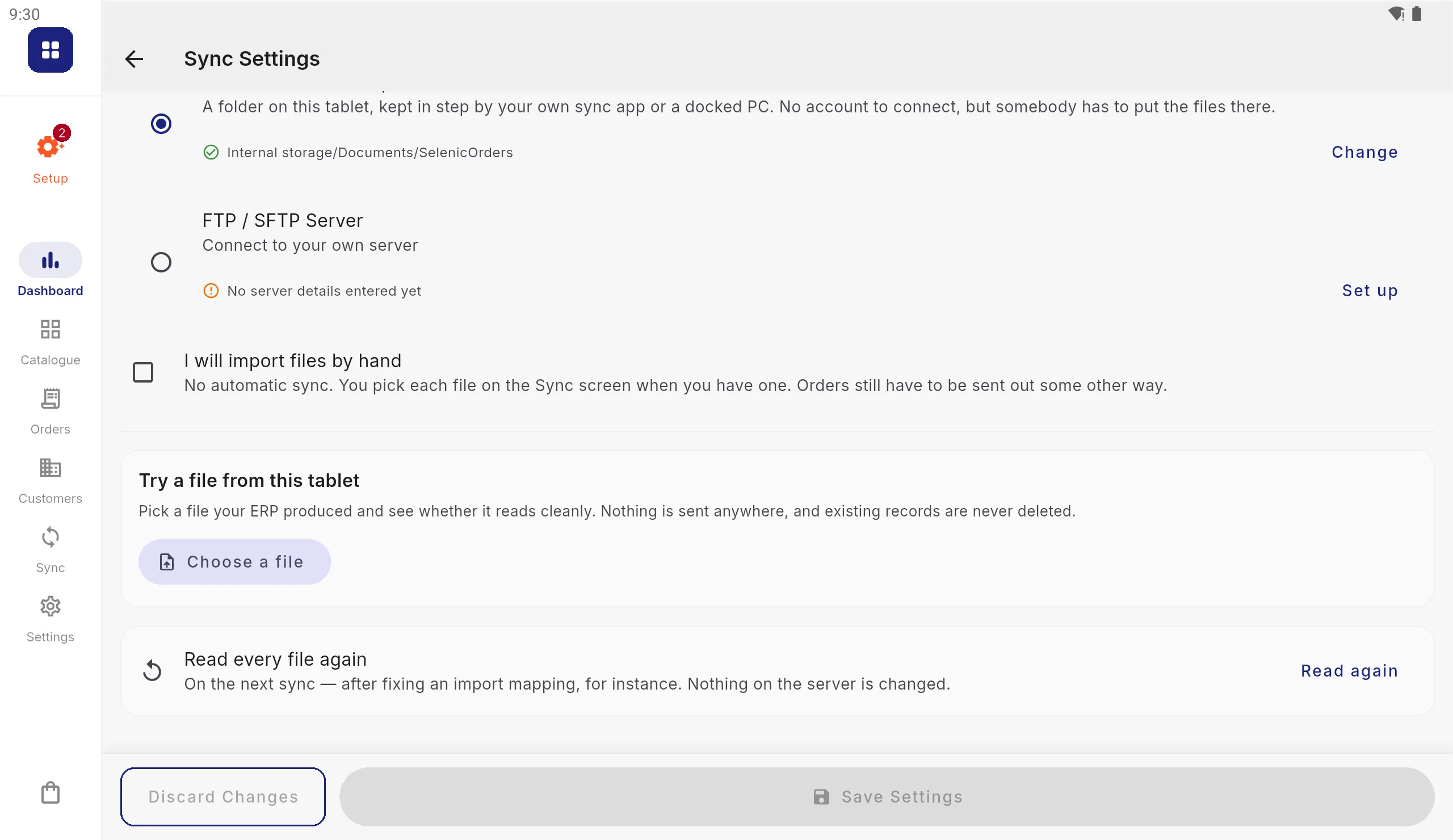
Under Settings › Data Integration › Sync & Integration › Receiving, press Choose a file under Try a file from this tablet and pick a real export. It is read through the template and the mapping, and you are told how many records imported and why any did not.
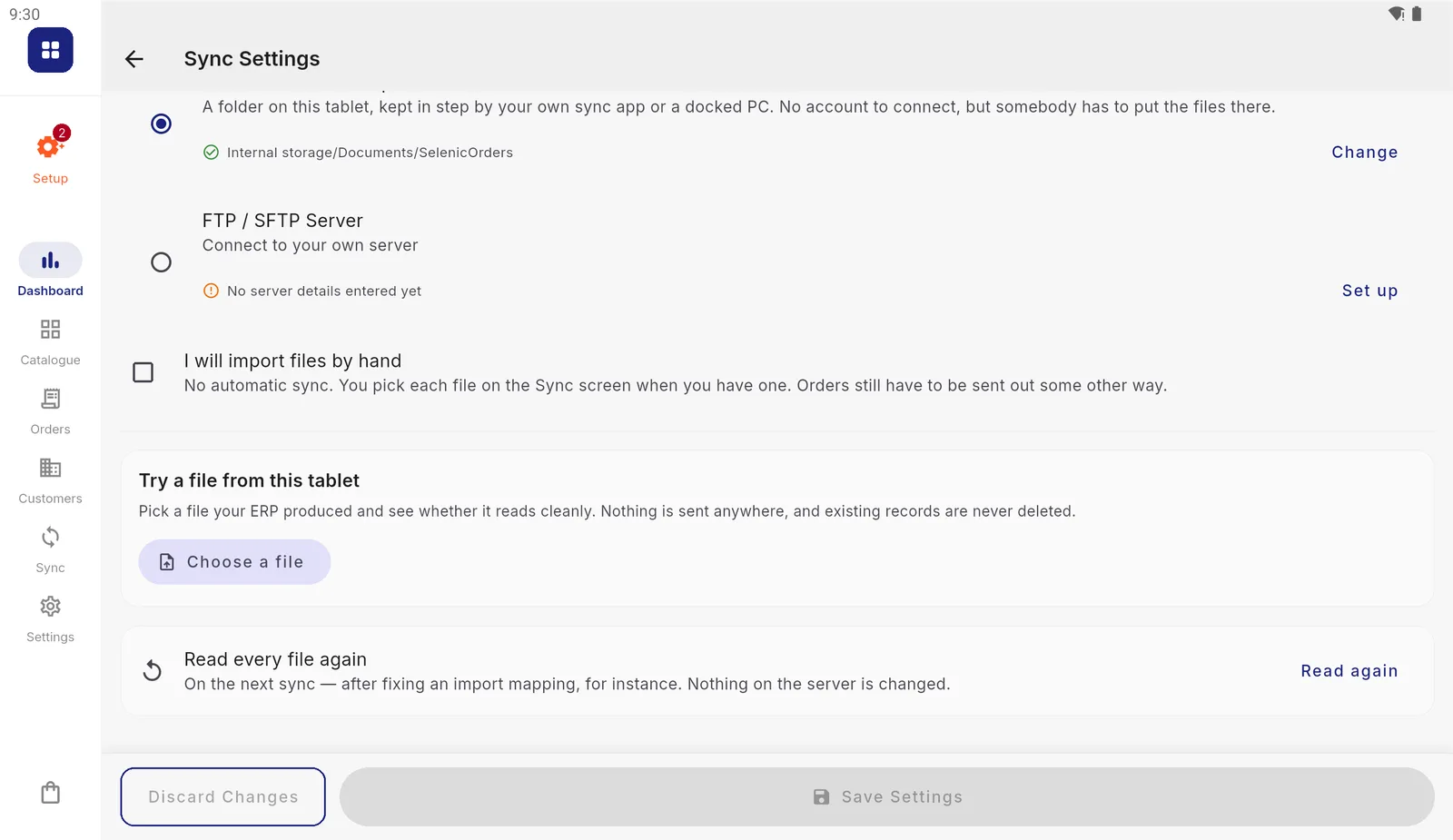
Nothing is sent anywhere, and existing records are never deleted.
To stop reshaping, open Reshape Feed, empty the box and press Validate & Save.
Writing templates
- Always use
json_escapeon text from your file. A product calledBen & Jerry's 500ml "Original"would otherwise break the JSON. - Put a comma between records and not after the last one. The
{% unless forloop.first %},{% endunless %}at the start of the loop does that. - Numbers can be written as text (
"12.50"), as the example does; the mapping reads them the same way as from a CSV. - To turn one row into several records, write more than one
{ … }inside the loop. - To skip a row, wrap its record in
{% if … %}, and take care the commas still come out right. - The language, tags and filters are the same as in export templates, where there are more examples.