Import profiles and field mapping
An import profile tells the app which column in your file holds which field:
that your SKU column is the product code, say, where the app’s own samples
call it ItemCode. Change the profile, not your system. If your export
already has the information but under other names, a profile is a five-minute
job on the tablet.
Every kind of record (products, customers, categories and so on) has its own profiles, one per format. The ones the app ships with are called CSV Default, JSON Default and XML Default, and read exactly the columns in the sample files. They cannot be edited; you make a copy and edit that.
If your file’s names are wrong, this page is all you need. If its shape is wrong (a price list’s name in one column and its price in another, say), see Reshape Feed as well.
Step by step
Open Import Profiles
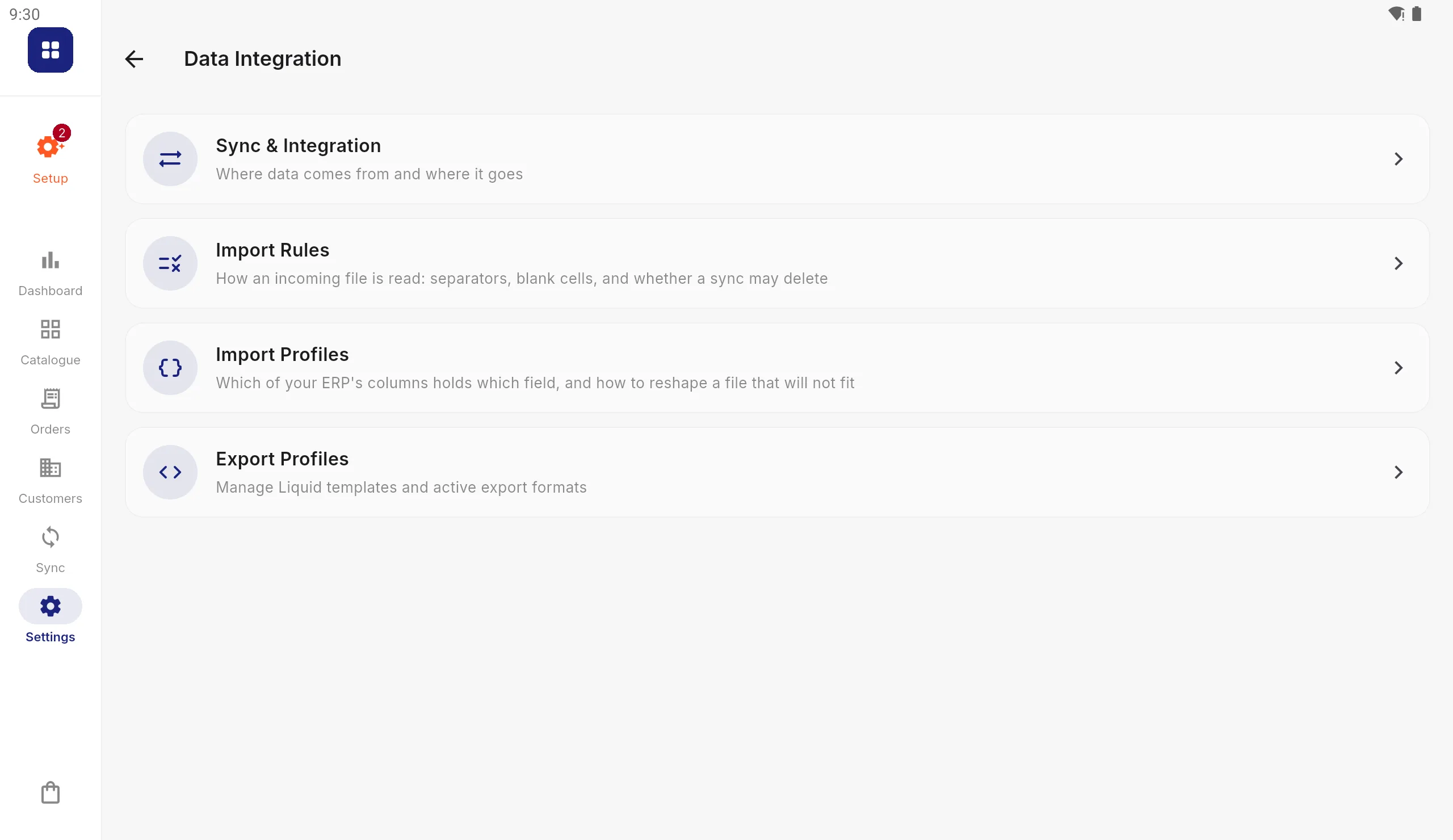
Go to Settings › Data Integration › Import Profiles.
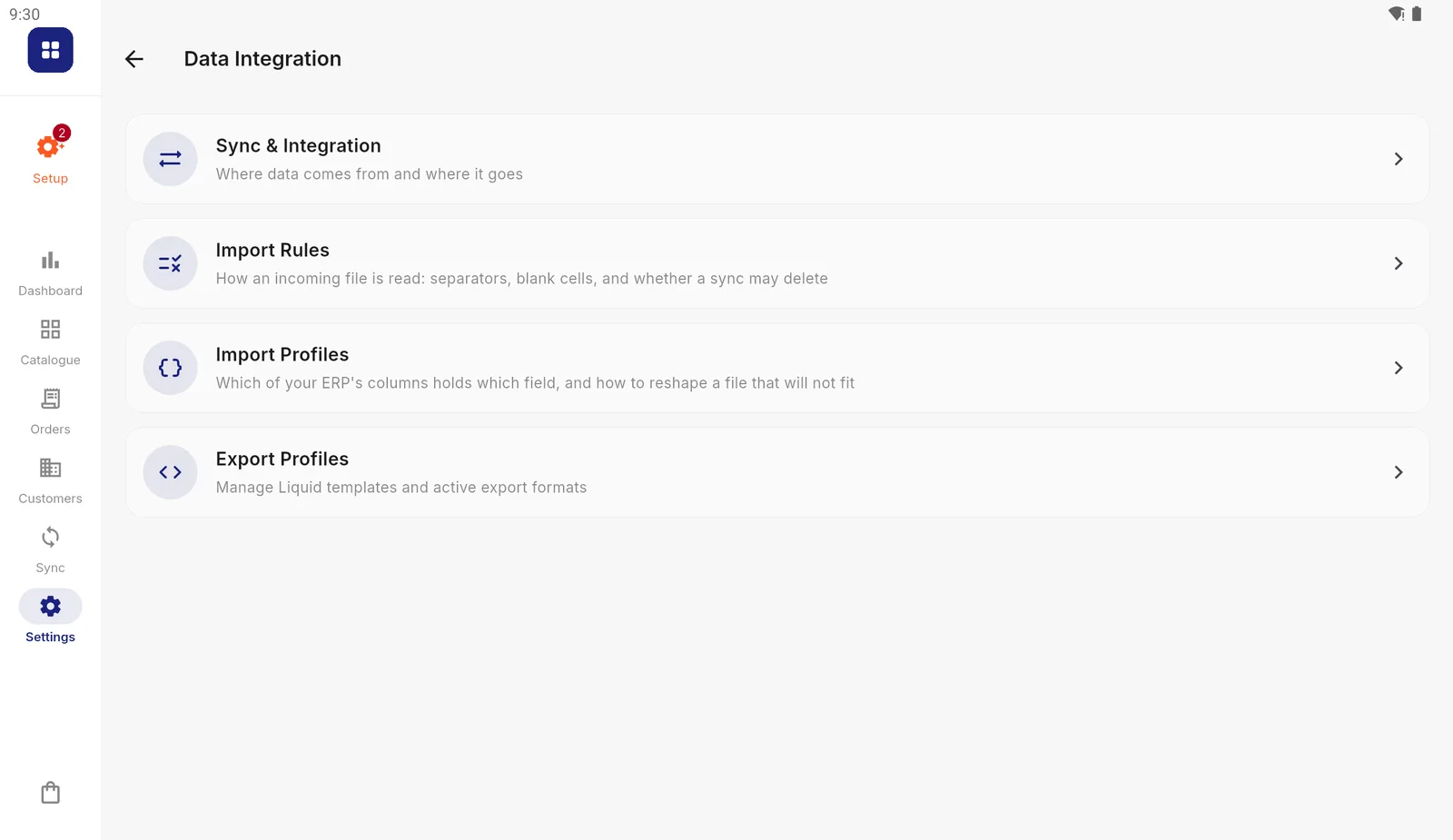
Data Integration holds everything about files in and out. Choose the records and the format
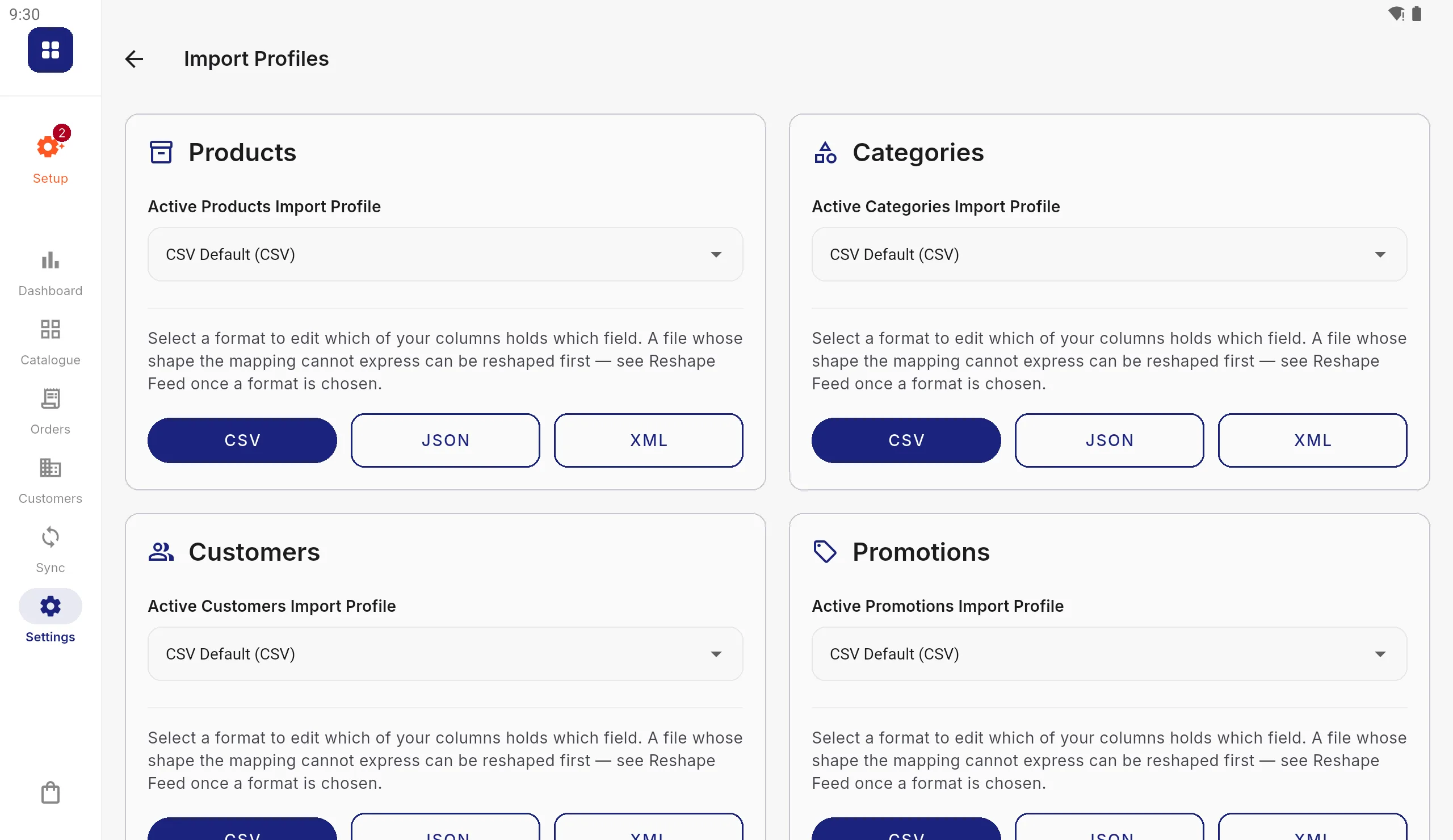
Each kind of record has a card showing its active profile. Press the format your file is in: CSV, JSON or XML.
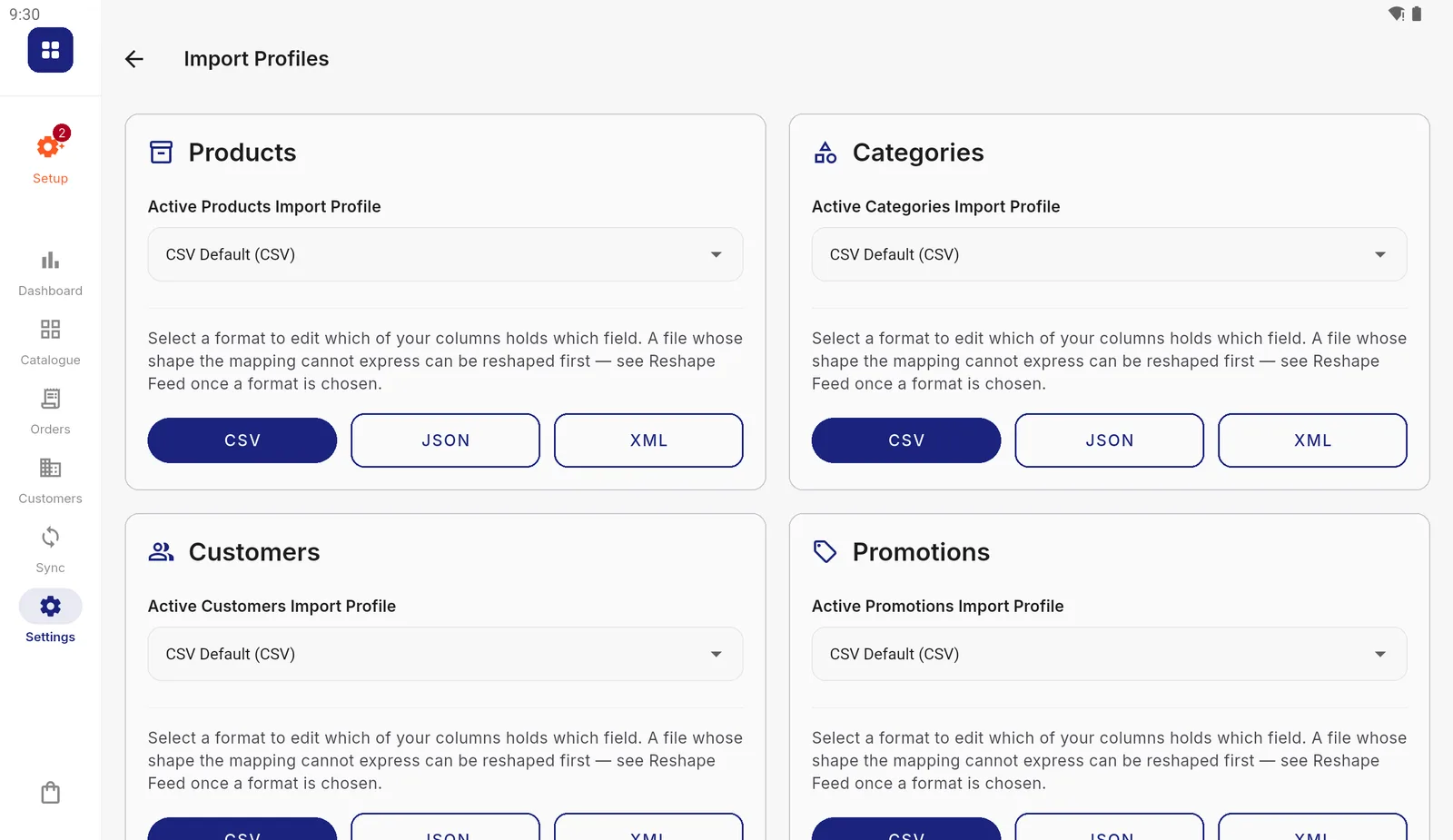
One card per kind of record. Scroll down for Announcements, Delivery Methods and Users. Press Duplicate to Edit
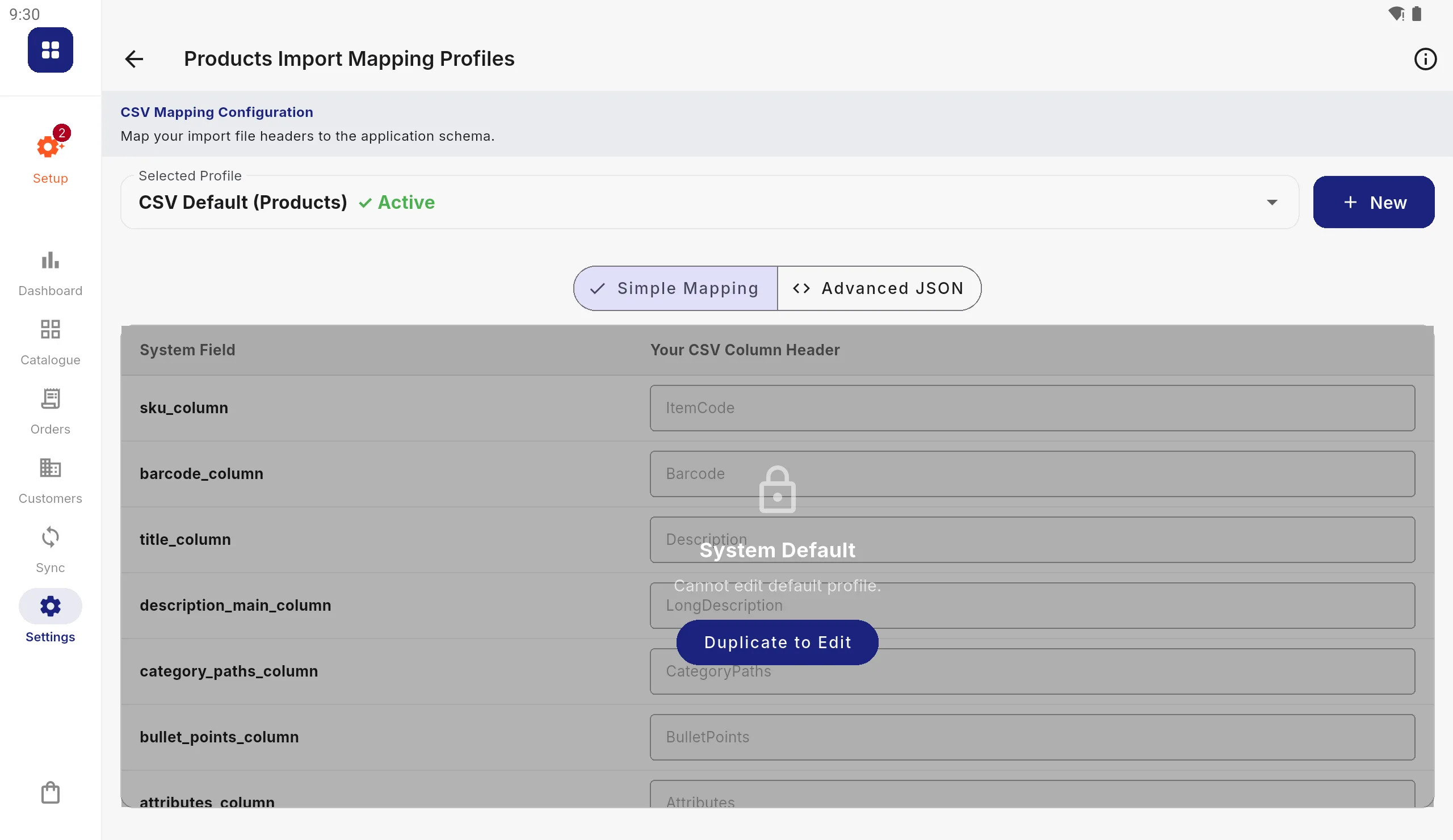
The default profile opens, locked. Press Duplicate to Edit.
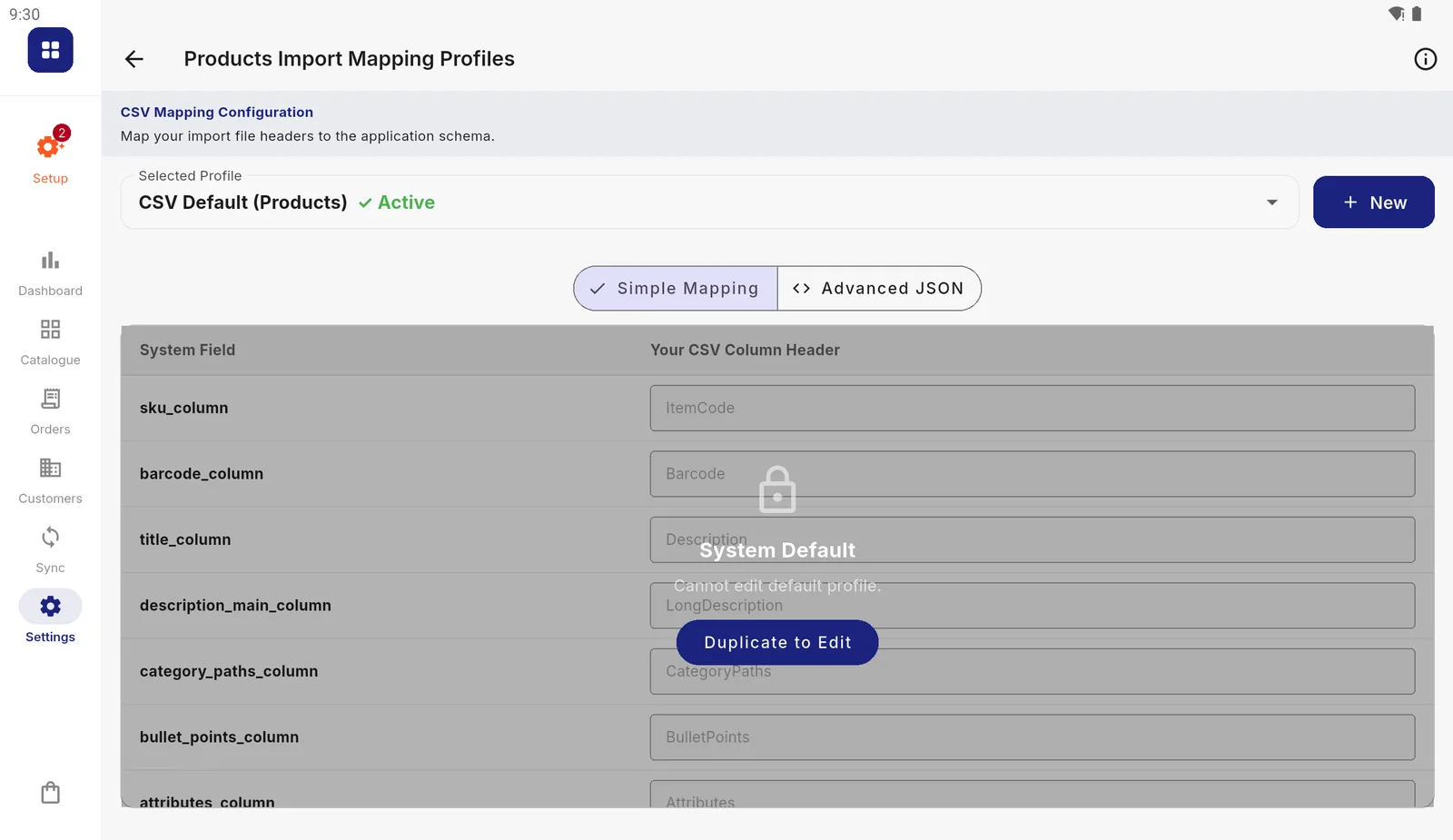
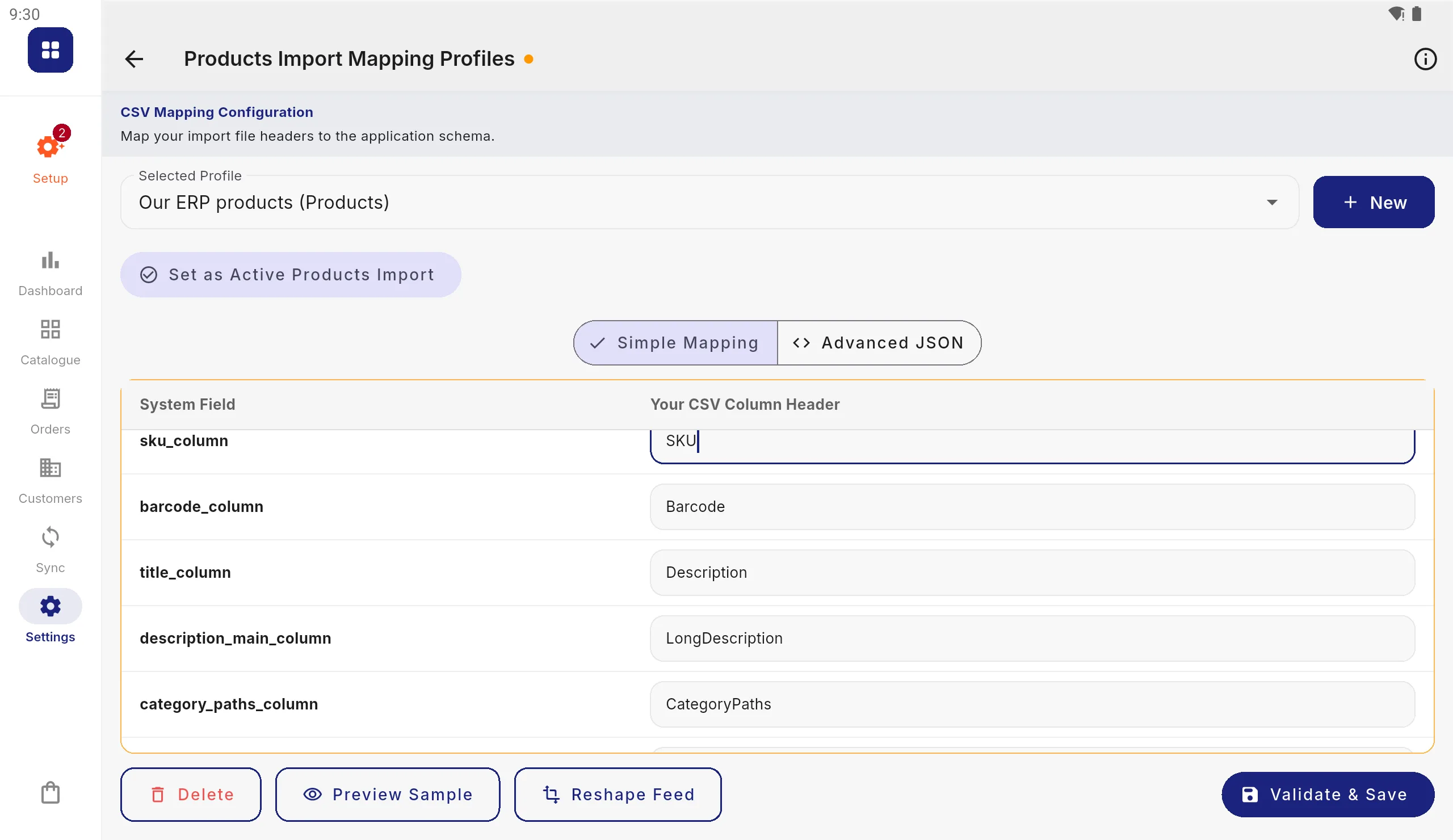
The left column is the app's field; the right is the column it reads from your file. Name the copy
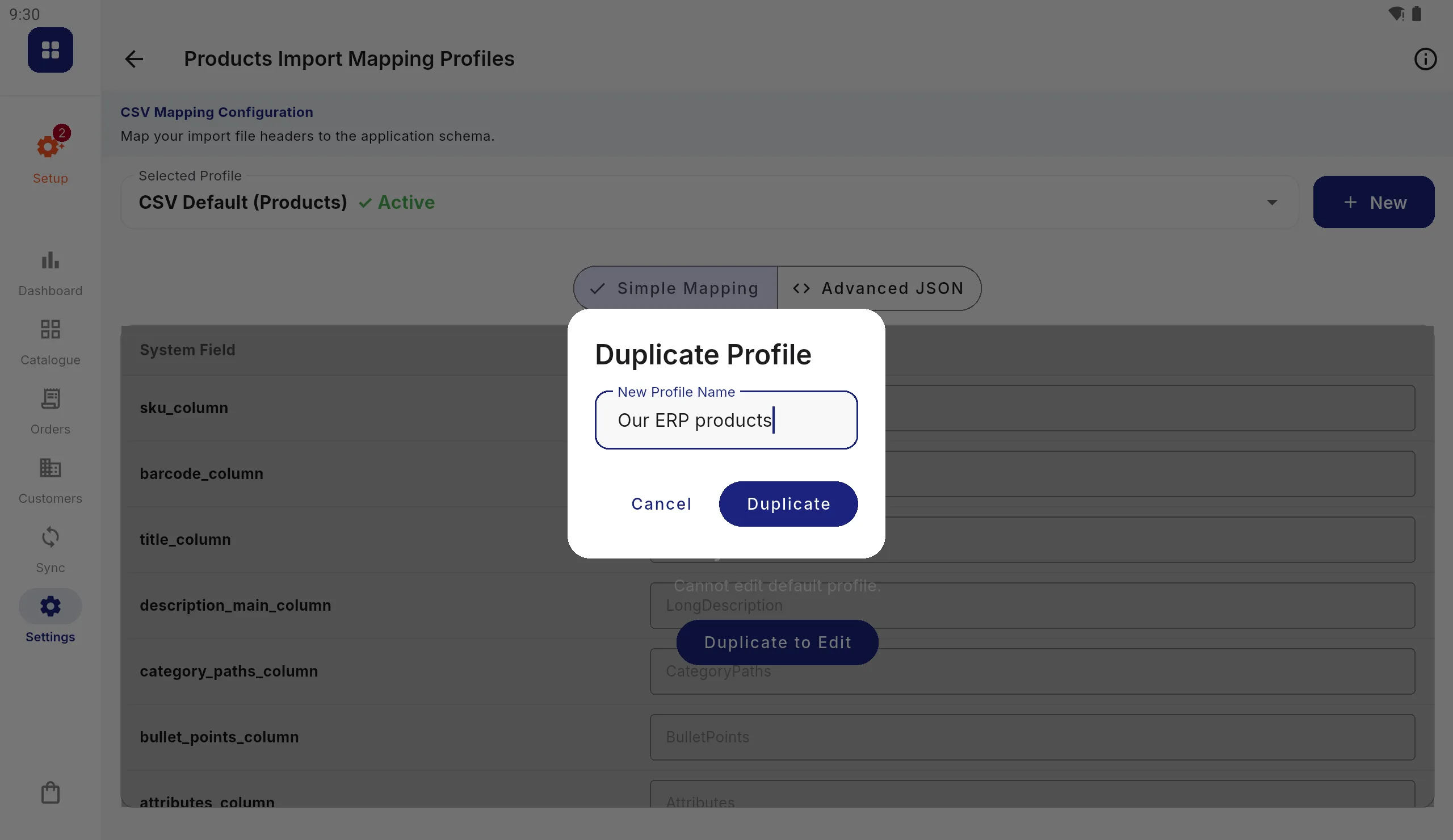
Give it a name you will recognise, such as the name of your system, and press Duplicate.
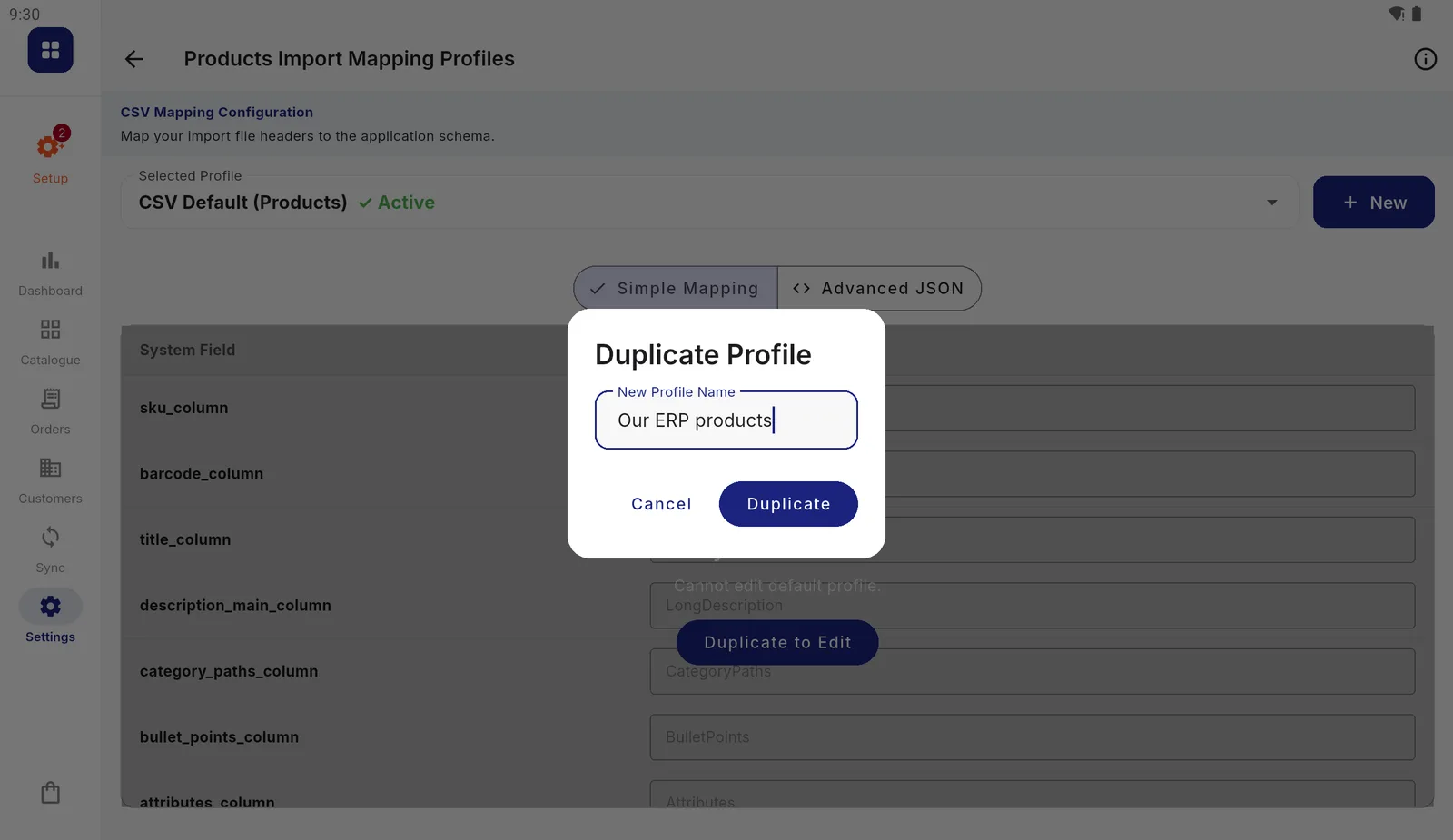
The copy starts identical to the default. Change the column names
For each field, type the name of the column in your file that holds it. Leave a box empty for a field your file does not have. Names are matched ignoring upper and lower case and surrounding spaces.
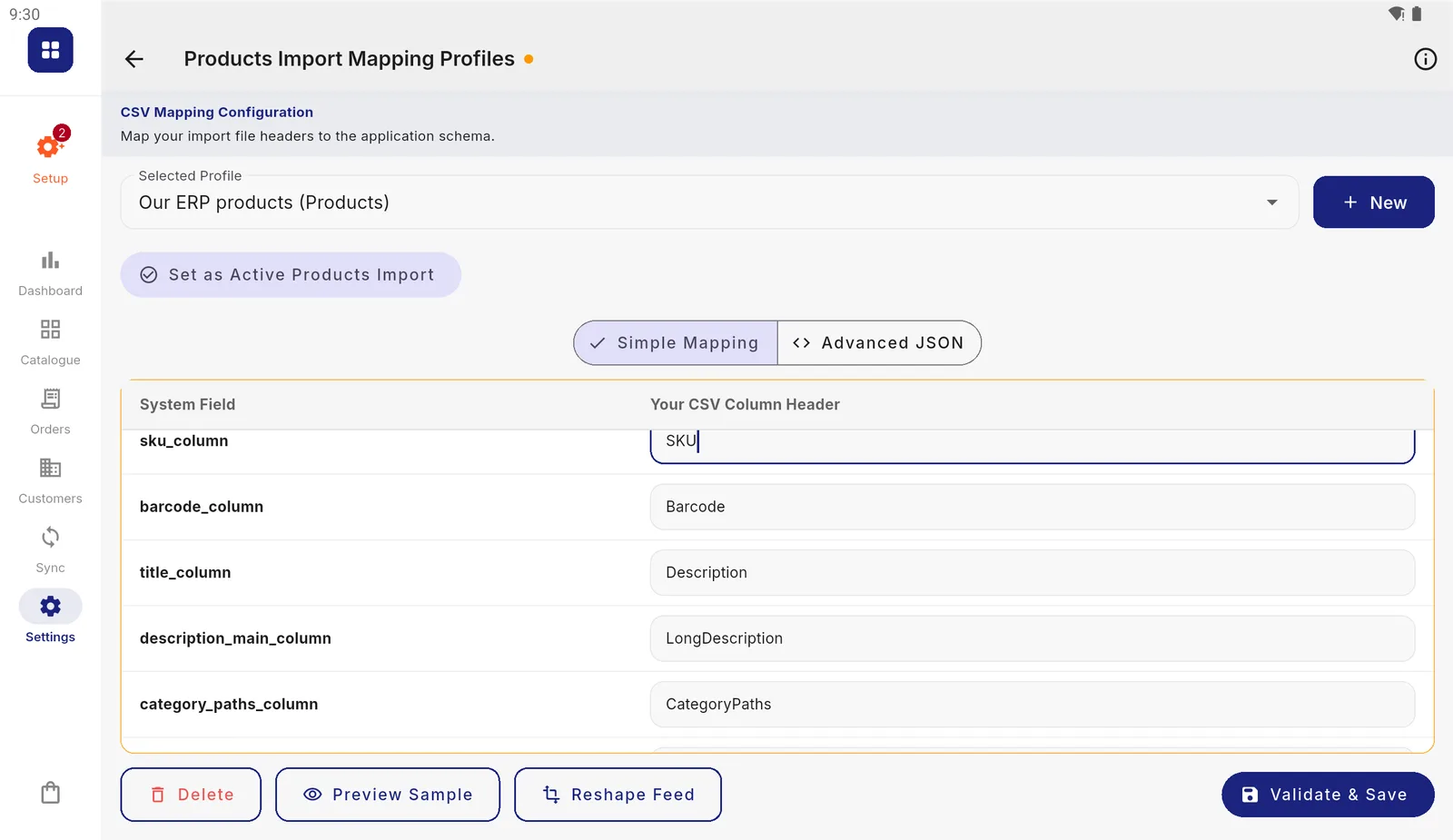
Here the product code is read from a column called SKU. The dot beside the title means there are unsaved changes. Press Validate & Save
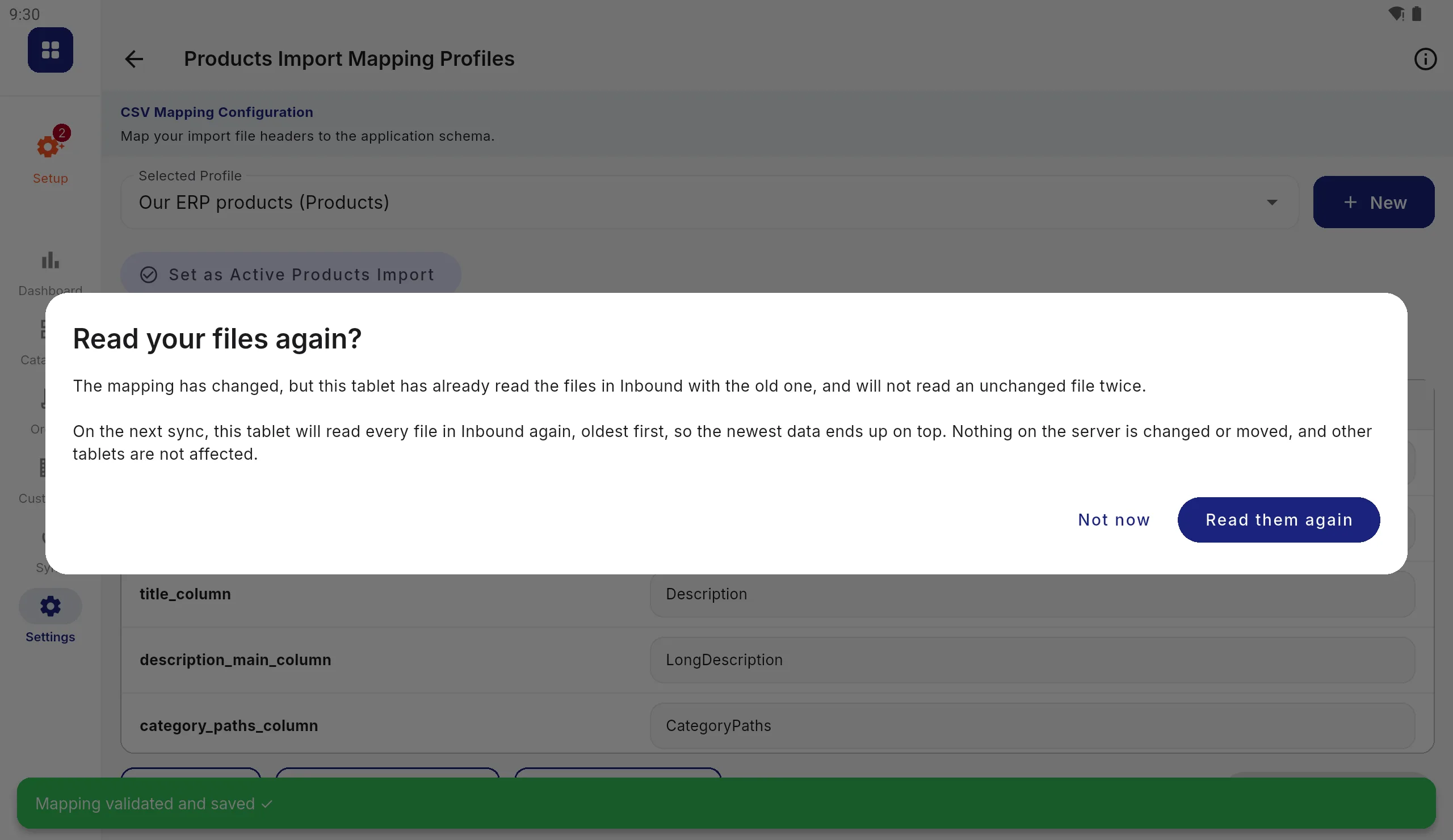
Press Validate & Save. If you change a profile after files have already been read, the app asks whether to read them again on the next sync: press Read them again so the fix applies to what is already in your folder.
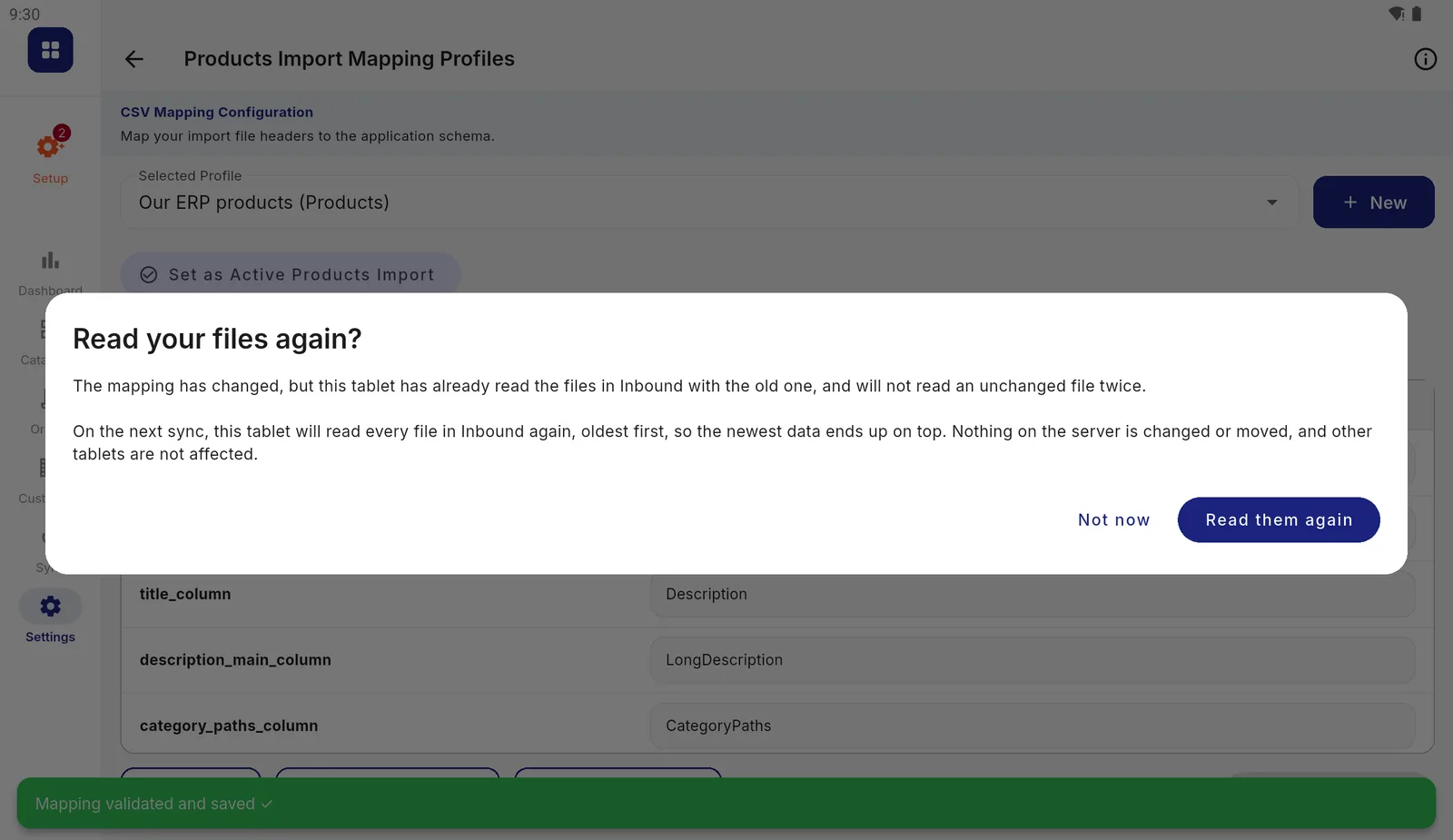
Reading again changes nothing on the server and does not affect other tablets. Make it the active profile
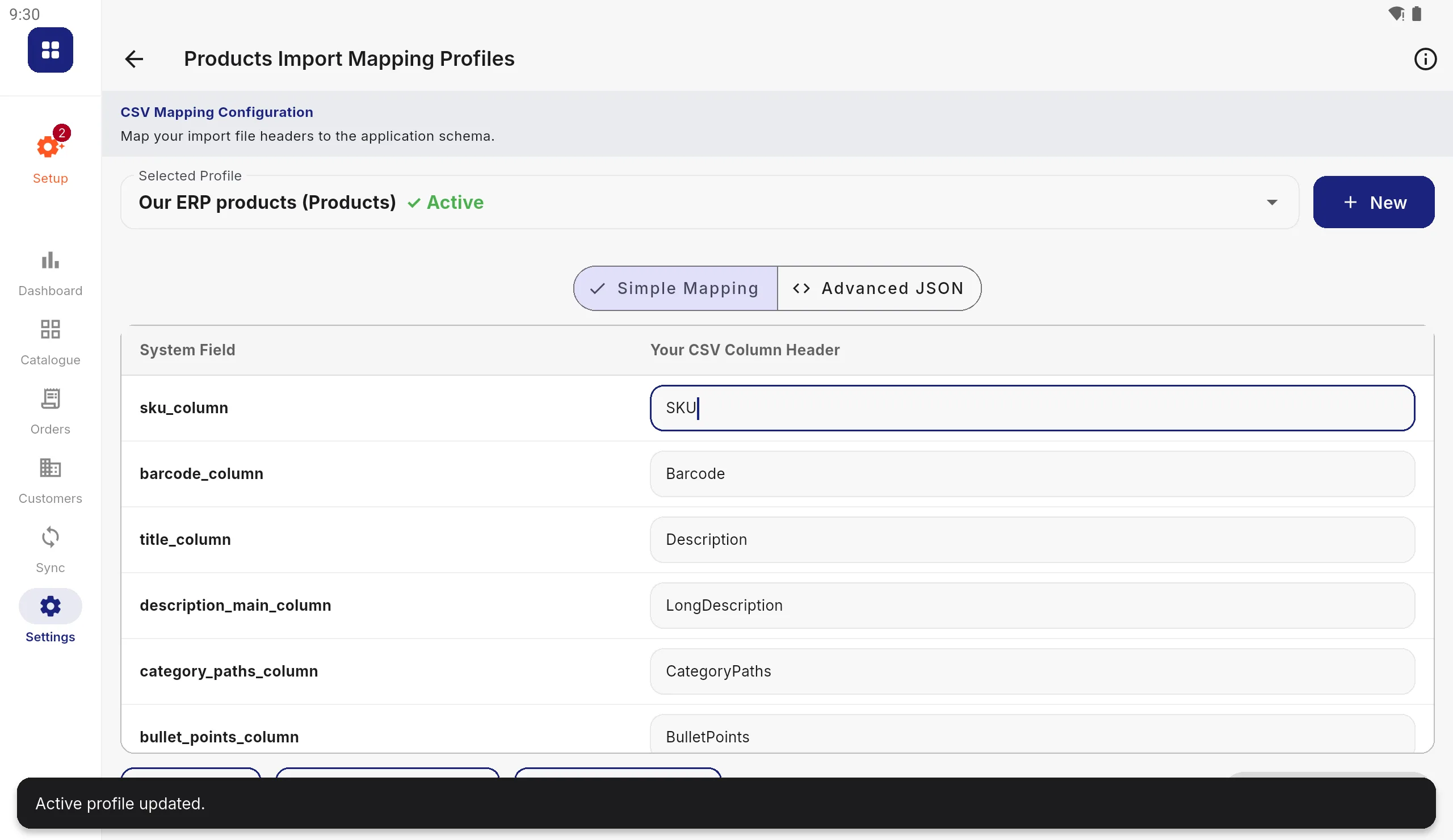
Press Set as Active Products Import (the wording names the kind of record). Only the active profile is used when a file arrives.
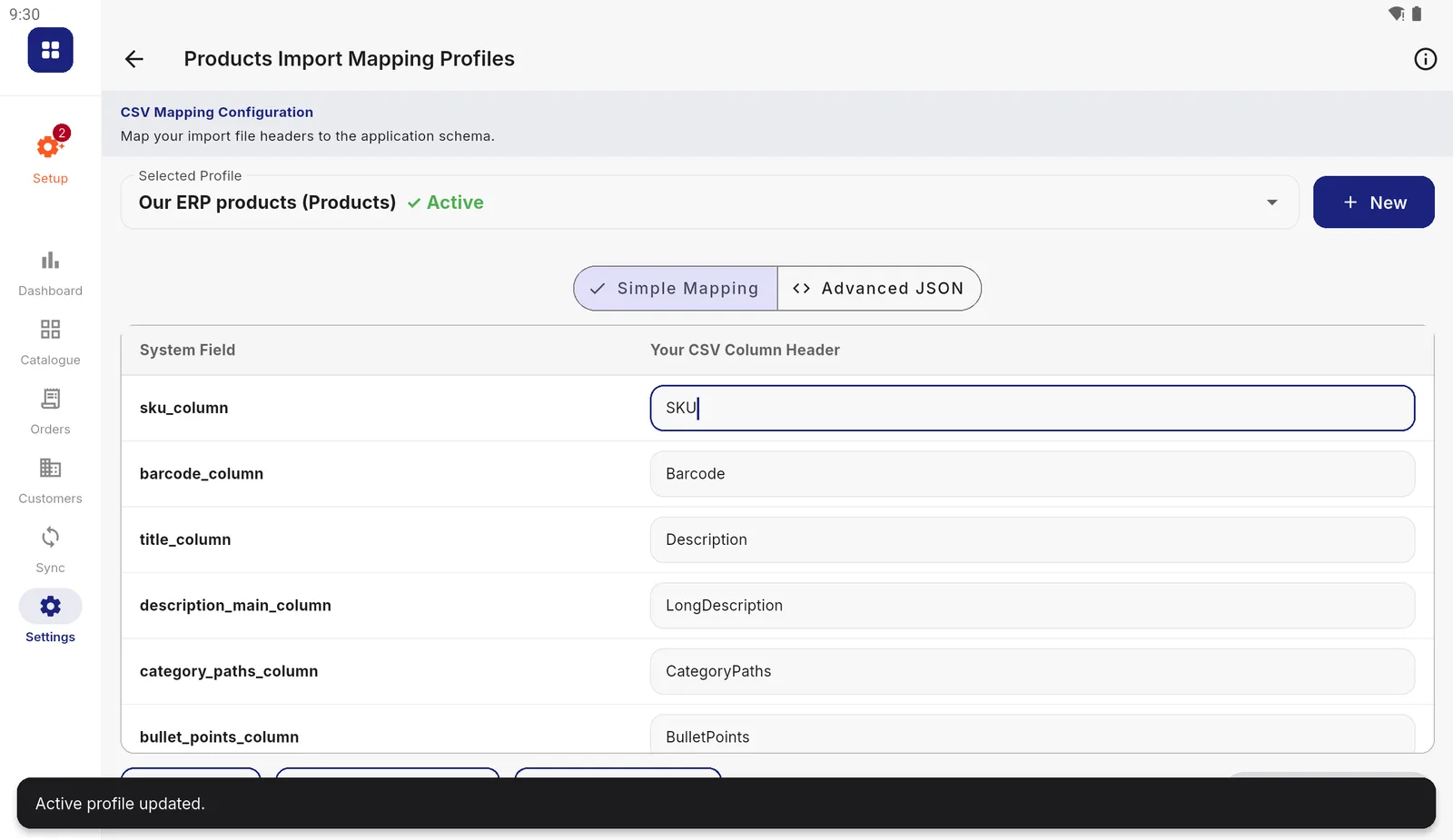
The green Active label shows which profile files are read with. Check the shape
Press Preview Sample to see the header row a file needs for this profile. It is the list of column names to give whoever produces your export.
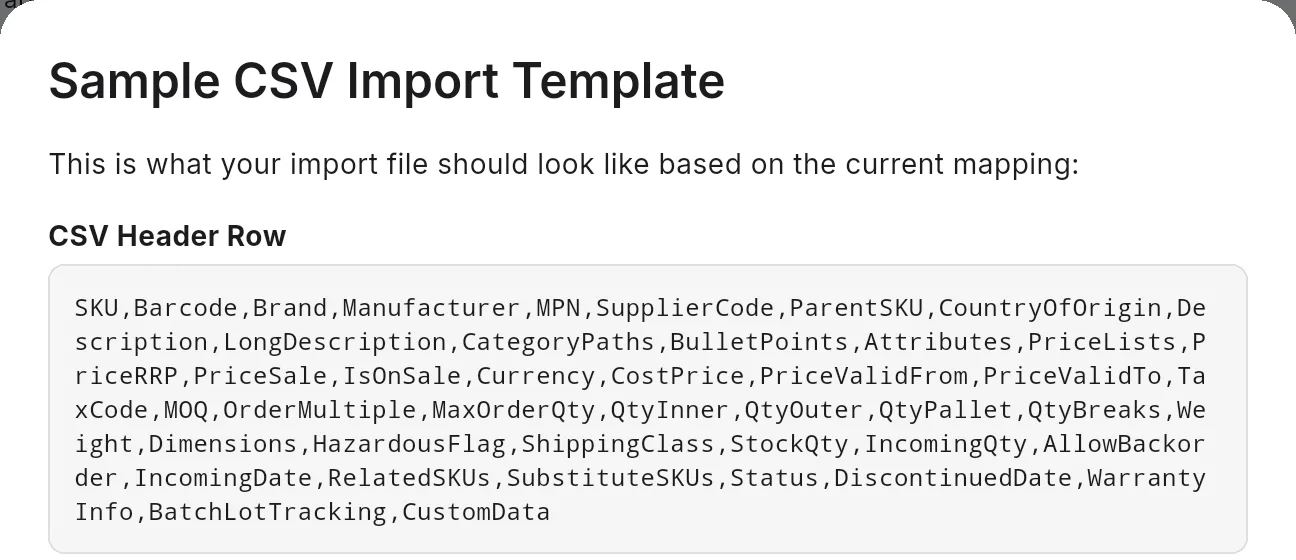
The header row. Below it the app shows a made-up example row; use the sample files for real values.
Then sync, or use Try a file from this tablet under Receiving to test one file first.
For your IT person
- Advanced JSON shows the same profile as a JSON object, one locator per field. It is quicker for a long profile, and it is how a mapping is copied between tablets by hand. Profiles also travel to other tablets with the shared settings.
- In JSON profiles a locator is a dot path (
billing.city); in XML profiles it is an element path (Customer/Billing/City). In XML only the part after the record element has to match: see the XML section. - Price lists can be read from one column, from a column per price list
(name them all, separated by
|:Trade|Wholesale|Pallet), or from a row per price list. See Connecting your ERP. - A file is matched to a profile by its name, not its contents, and then read with that kind of record’s active profile for its format.
- Import Rules, beside Import Profiles, controls what a blank cell means (Ignore Blank Cells), whether a sync may delete records missing from a file (Full Replace Mode), and the separator in multi-image file names. Leave Full Replace off unless every file is a complete list.